 AI
AIAttach file to Smart Document
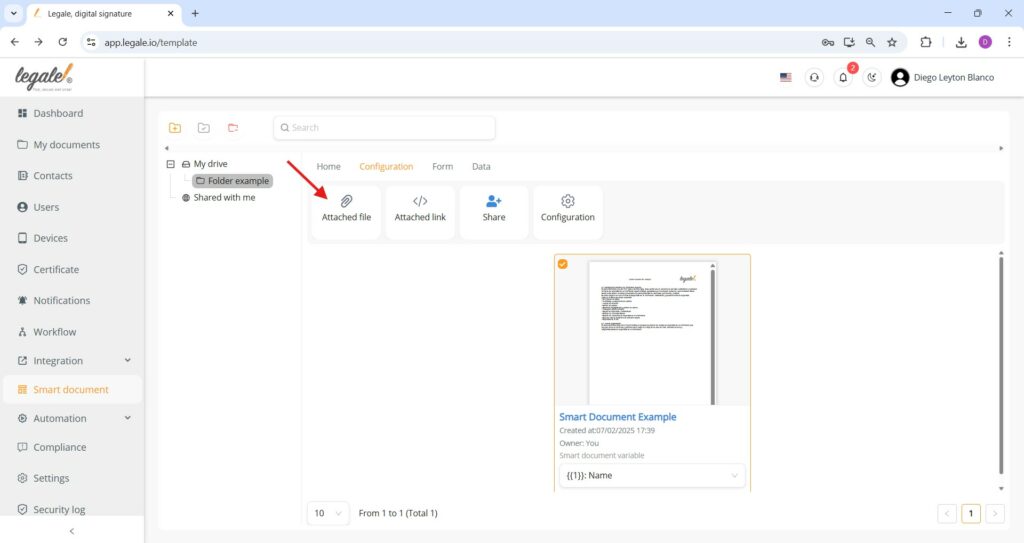
The Attached file option becomes available once a Smart Document is selected, allowing users to include relevant supporting documents directly within the configuration section for streamlined access and reference.
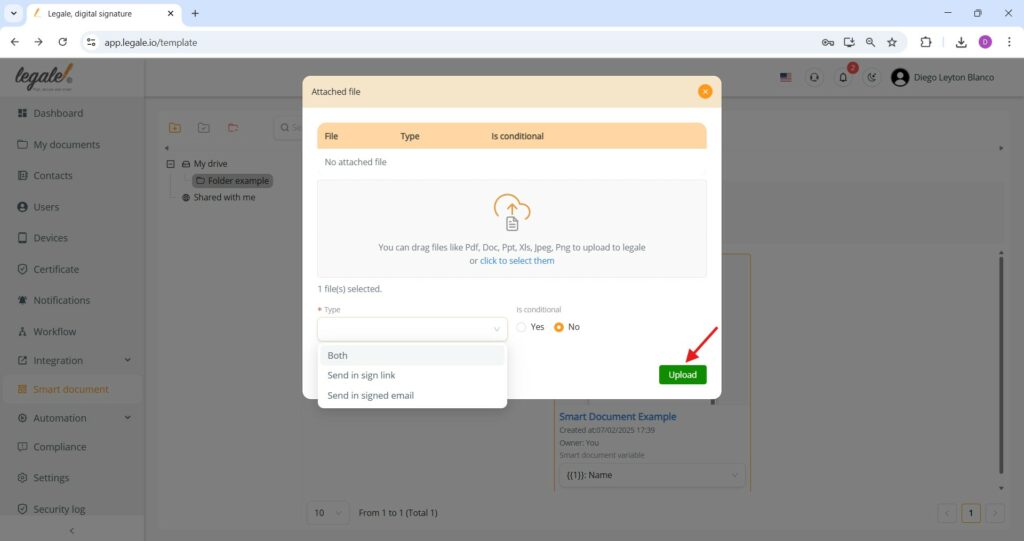
File upload settings
To complete the file attachment, select the delivery type—either via sign link, signed email, or both—then define whether the attachment is conditional, and finally click Upload to confirm and attach the selected document to the Smart Document.
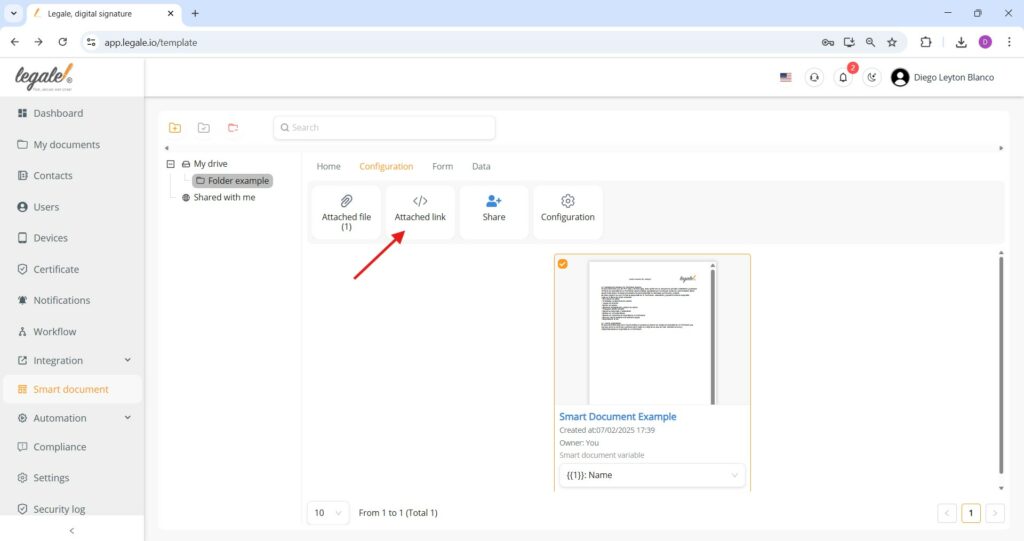
Attaching a link to a Smart Document
Clicking the Attached link button allows users to associate an external URL with the selected Smart Document, enabling additional reference material or related online resources to be embedded within the document’s configuration.
Saving the attached link
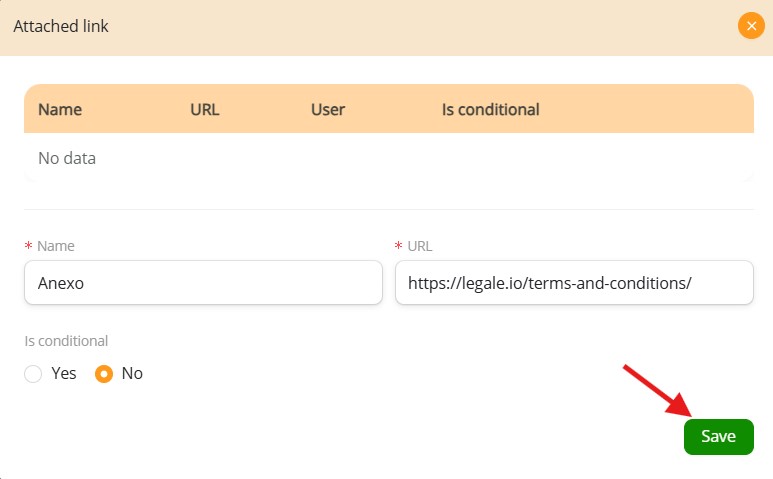
To finalize the addition of a hyperlink, the user must input a name and a valid URL, choose whether the link should be conditional, and click the Save button to store it with the Smart Document.
Accessing sharing options
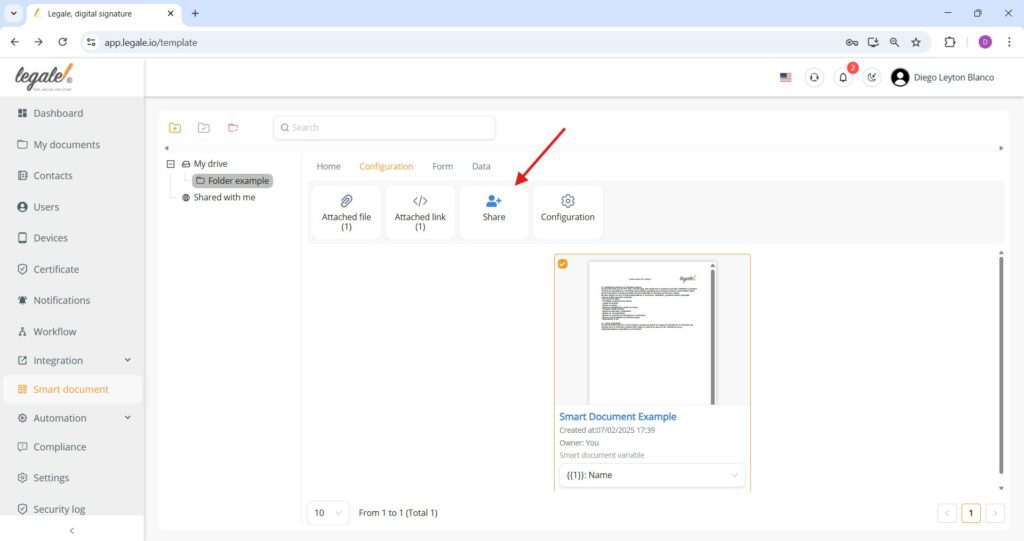
To initiate sharing of a Smart Document, click the Share button located in the Configuration section of the interface.
Sharing Smart Documents with other users
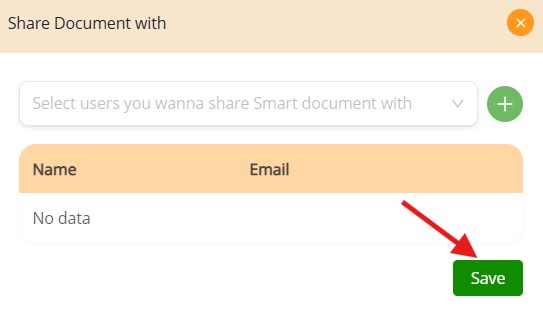
To share a Smart Document, select users from the dropdown menu, click the green plus icon to add them, and finalize by pressing Save. This grants access to the specified individuals and ensures collaborative availability of the document.