 AI
AIUpdating a CSV in your automation
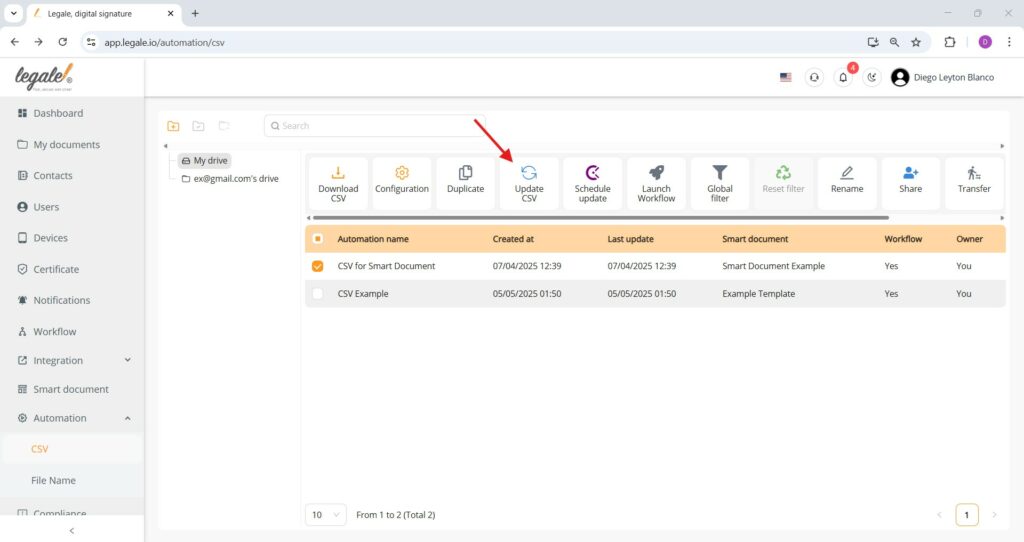
To update the CSV linked to your automation, select the automation from the list and click the Update CSV button (circular arrow icon). This will prompt you to upload a revised CSV file, which will replace the current dataset and apply new values to associated smart document variables.
Finalizing the CSV update
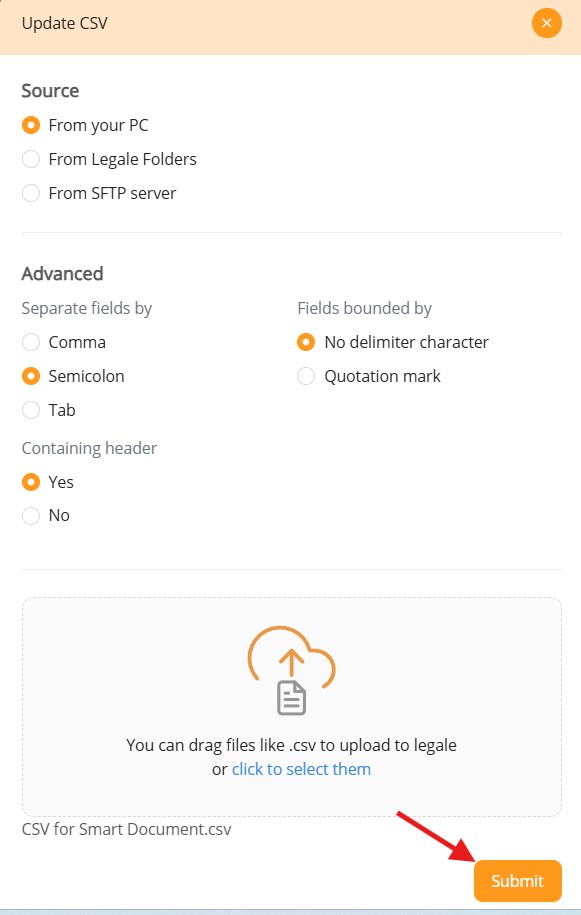
After selecting your updated CSV file and adjusting parsing preferences (e.g., delimiter, quote handling, and header presence), click the Submit button to apply changes. This action will refresh the linked data source, allowing all workflow and smart document operations tied to that automation to reflect the new CSV content.
Schedule update
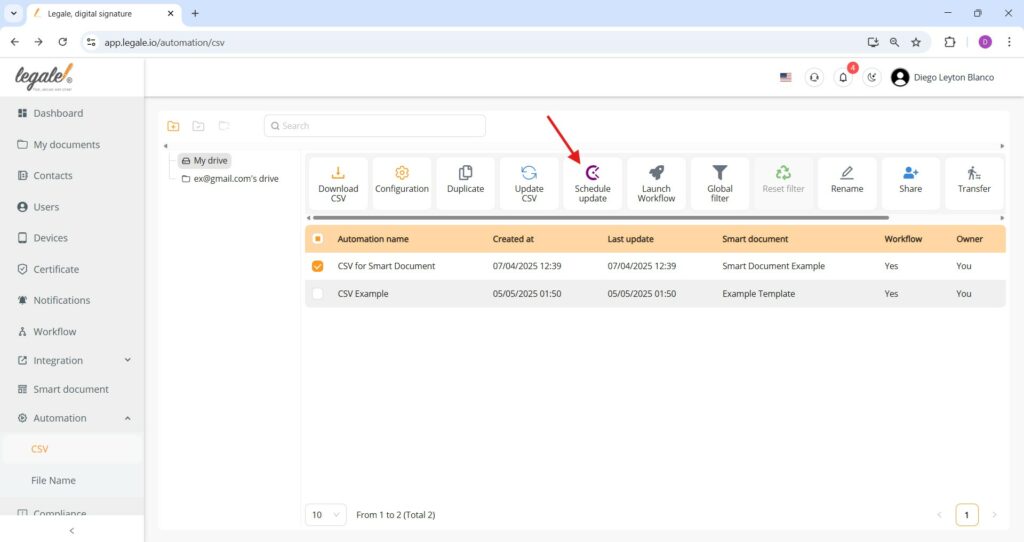
The “Schedule update” function allows you to automatically refresh the CSV by setting up a scheduled interval, ensuring the document stays up to date.
Update schedule configuration
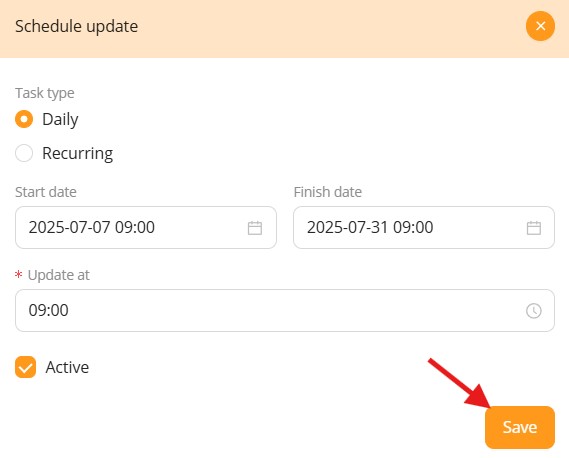
This screen allows you to configure the automated update settings for a smart document. You can choose between a Daily update or a Recurring schedule. Define the start date, finish date, and time of update to control when the automation should run. Enable the Active checkbox to activate the schedule, and click Save to confirm the configuration.