 AI
AIPause a workflow in progress
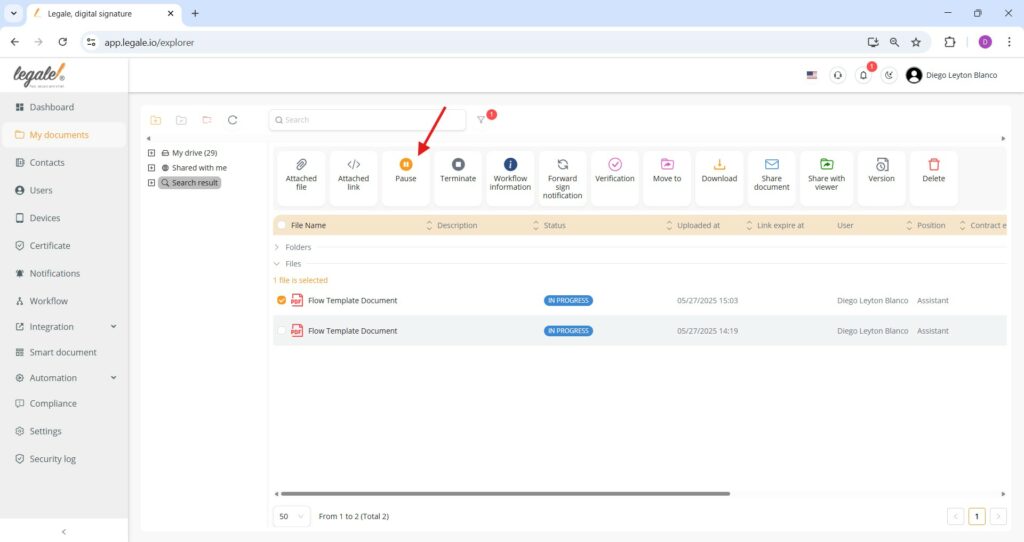
To pause a workflow that is currently in progress, first select the document by clicking the checkbox next to it (e.g., “Flow Template Document”), then click the “Pause” button located in the top action menu—this will immediately suspend the ongoing workflow, allowing you to resume or make changes at a later time.
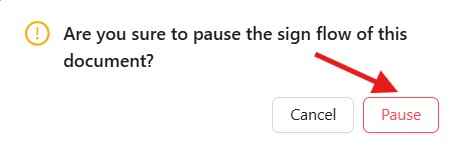
Pause confirmation
Once you click the “Pause” button in the action menu, a confirmation prompt will appear asking, “Are you sure to pause the sign flow of this document?”—to proceed, click the red “Pause” button, and the workflow will be successfully paused.
Pause workflow in progress
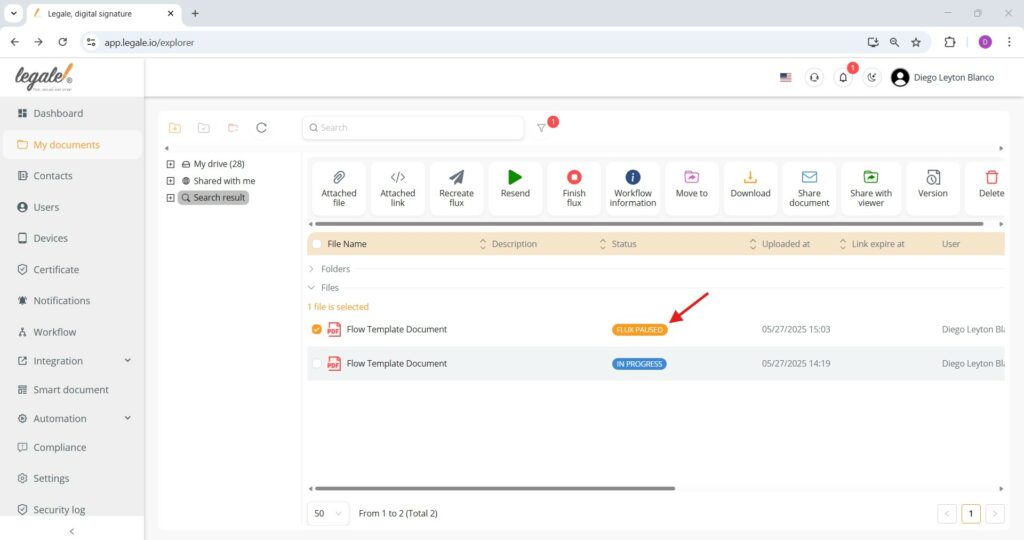
Once paused, the document’s status will automatically change to “FLUX PAUSED”, highlighted in orange beside the file name, clearly indicating that the signature flow has been temporarily stopped.
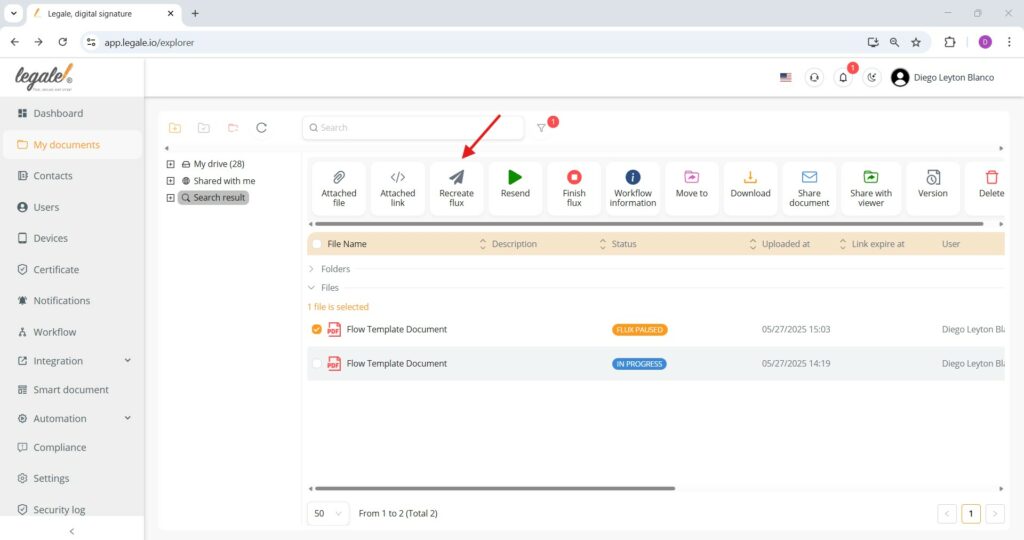
Recreate workflow
To restart a signature process from a paused, simply select the document and click on the “Recreate flux” button located in the top menu. This action initiates a new signature flow for the same file, allowing users to define a new sequence or update participants as needed.
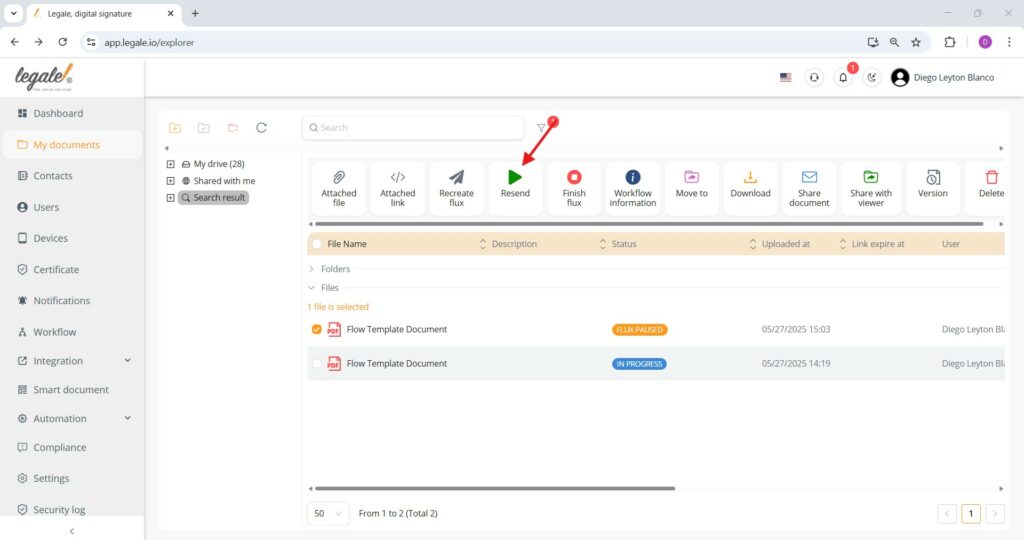
Resend workflow notification
If a document’s signature process is already paused and needs to be nudged, you can click the “Resend” button from the toolbar after selecting the file. This will resend the signing request to pending participants.
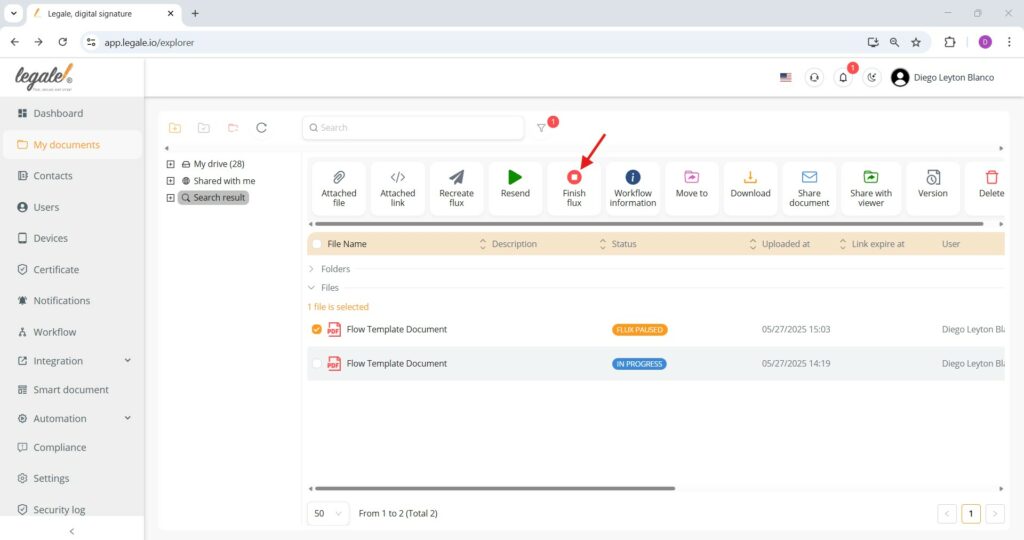
Finish signature flow
To manually conclude a signature process, select the document and click the “Finish flux” button in the toolbar—this action will end the signing workflow immediately, regardless of pending signatures, effectively archiving the document’s flow status.
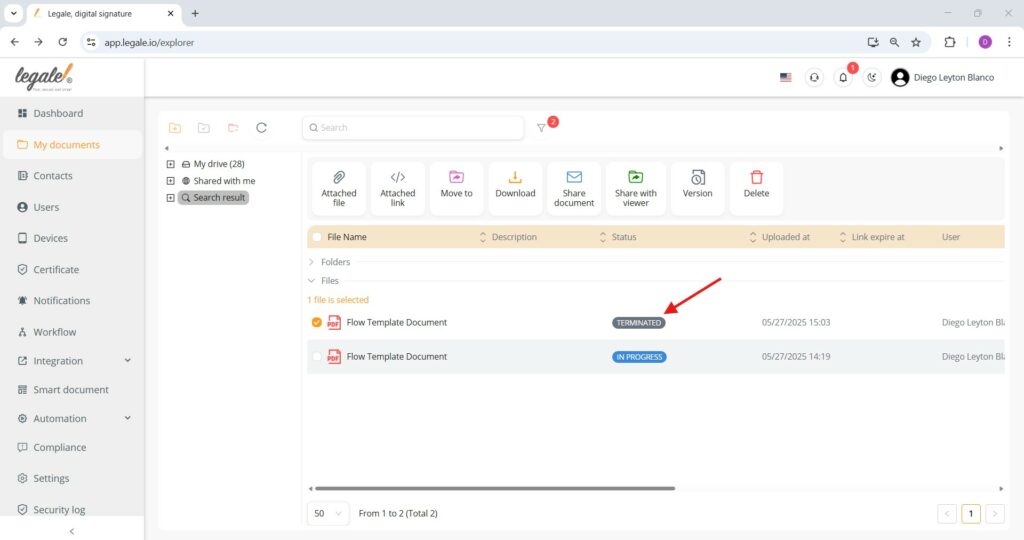
Terminated signature flow
Once the “Finish flux” option is selected, the document’s workflow status changes to TERMINATED, indicating that the signing process has been forcefully concluded and no further action will be taken within that flow.