
 AI
AI
Finances
Sales and contracts
Human Resources
Legal department
Operations
Security
Chilean Labor Department
Digital Signature
Legale.io includes an integration with BUK that allows documents to be sent directly from Legale.io to a collaborator’s profile in BUK.
The collaborator is identified using their RUT. Once the integration has been configured, a document can be selected in Legale.io and sent directly to the corresponding collaborator in BUK.
This guide explains how to:
The BUK integration is an optional feature and is not enabled by default on Legale.io accounts.
To use this functionality, the customer must contact their Legale.io Sales Executive and request the activation of the BUK integration for their account.
Please note that this functionality has an additional cost. The Sales Executive will provide the corresponding commercial information and coordinate the activation of the feature.
Once the integration has been activated for the account, the BUK configuration option will become available in Legale.io and the integration can be configured using the steps described below.
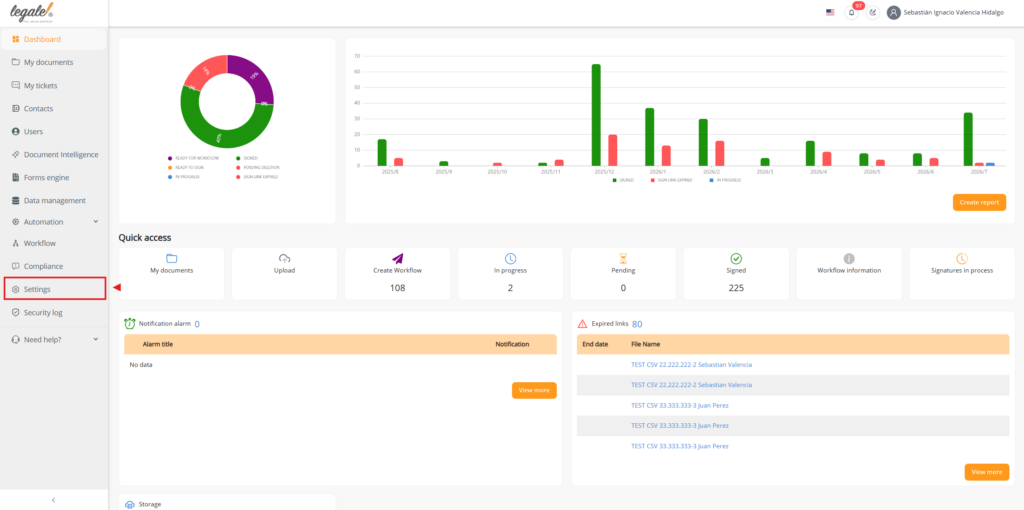
Log in to the Legale.io platform.
From the main menu, go to Settings.
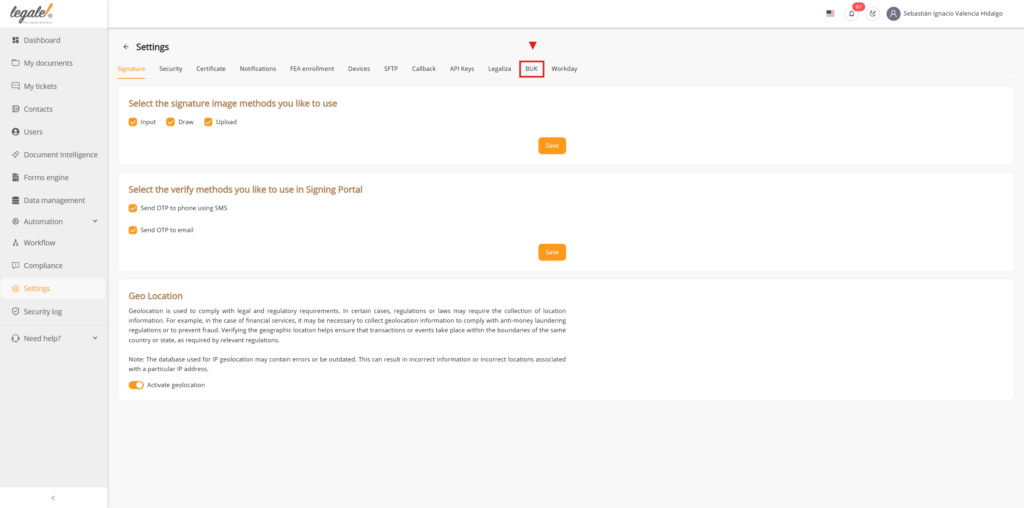
Inside Settings, locate and select the BUK option.
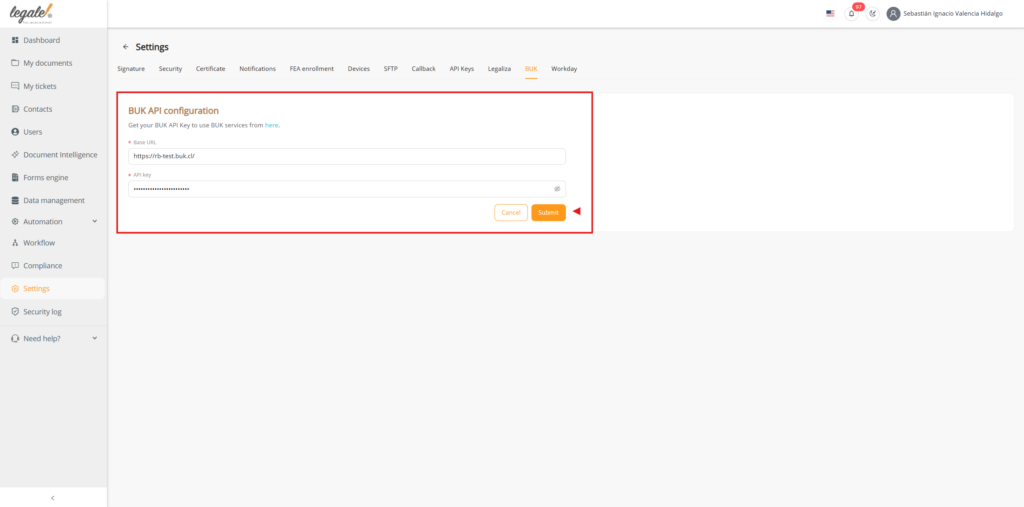
This section contains the configuration required to connect Legale.io with BUK.
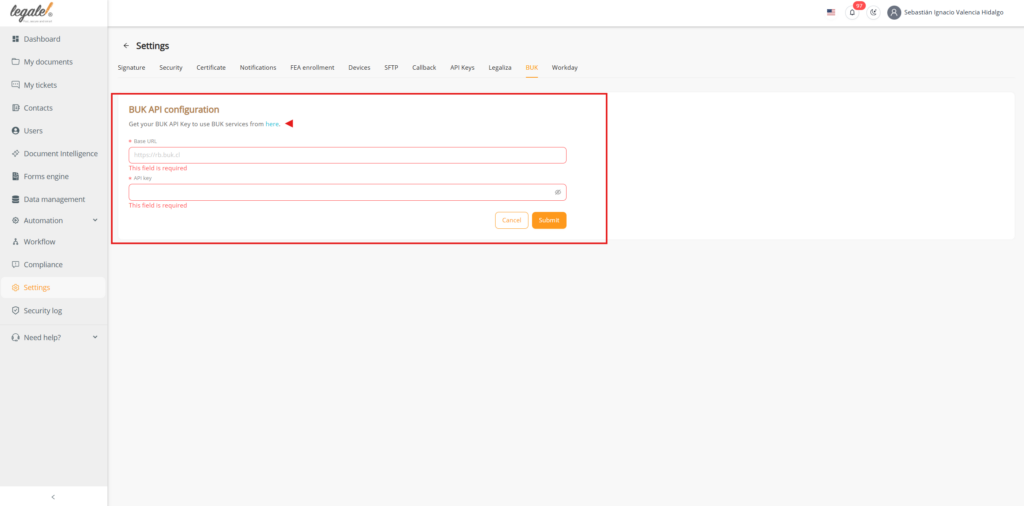
Inside the BUK configuration, Legale.io will request the following information:
For this integration, use the following Base URL:
https://customer.buk.cl
The API Key must be generated from the BUK platform.
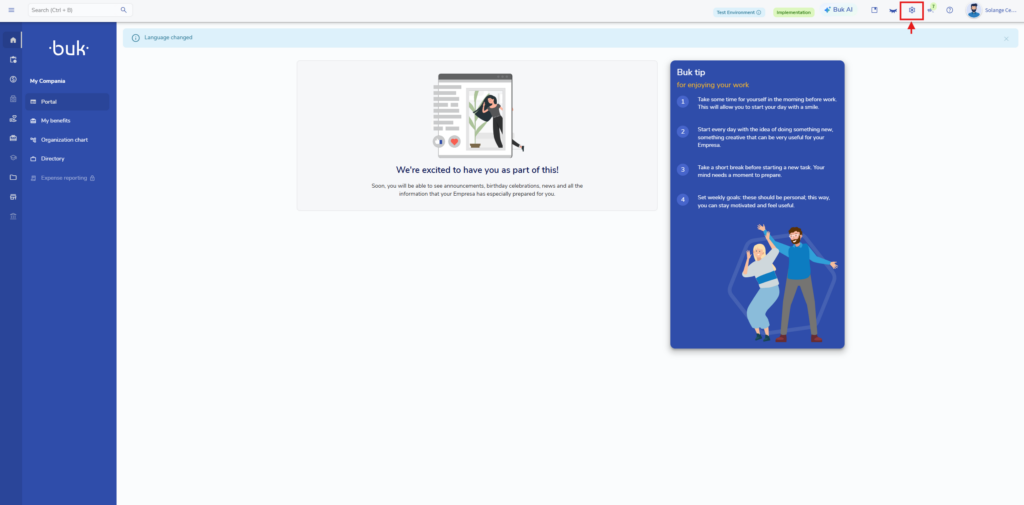
Open the BUK platform and log in with an account that has permission to manage API access.
The API Key required by Legale.io will be generated from this platform.
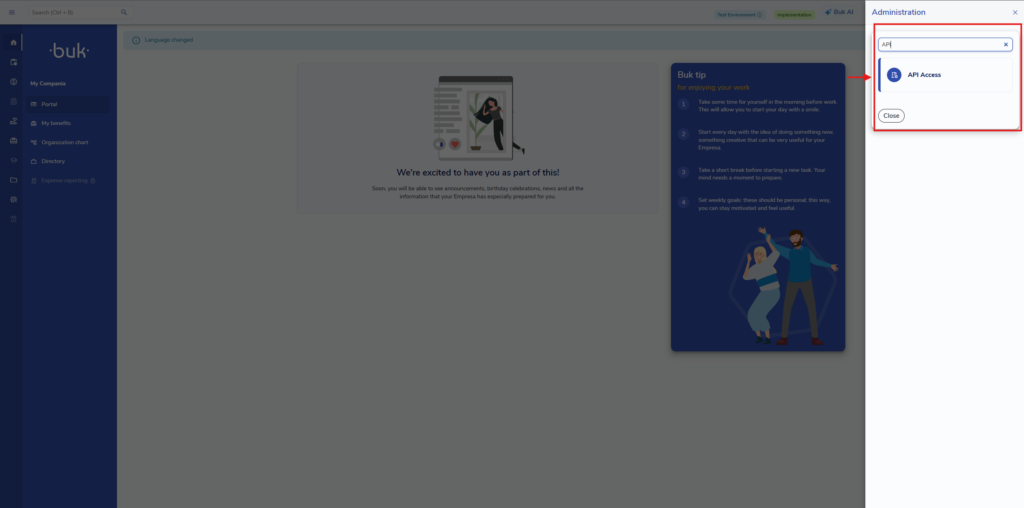
Inside BUK, click the Settings icon represented by the gear icon.
From the available configuration options, locate the API configuration section.
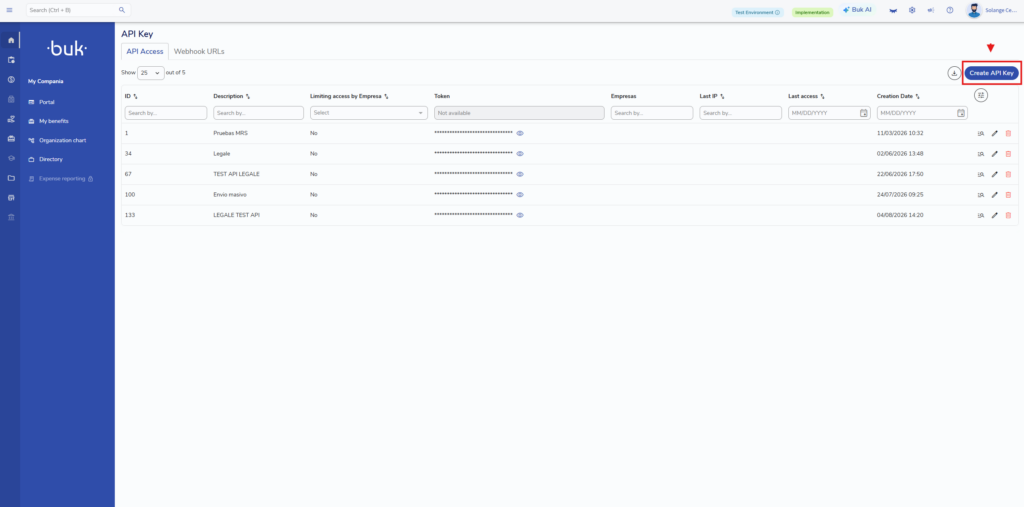
Go to API Access.
This section allows API credentials to be created and managed.
Select the option to create a new API credential.
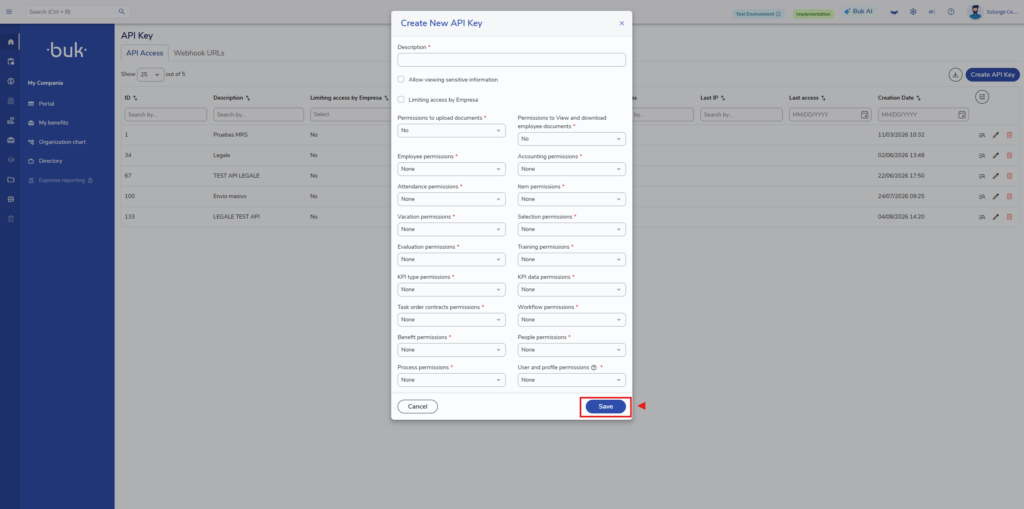
The API creation window will open.
Complete the required information, including:
Configure the permissions required for the Legale.io integration.
Once the configuration is complete, click Save.
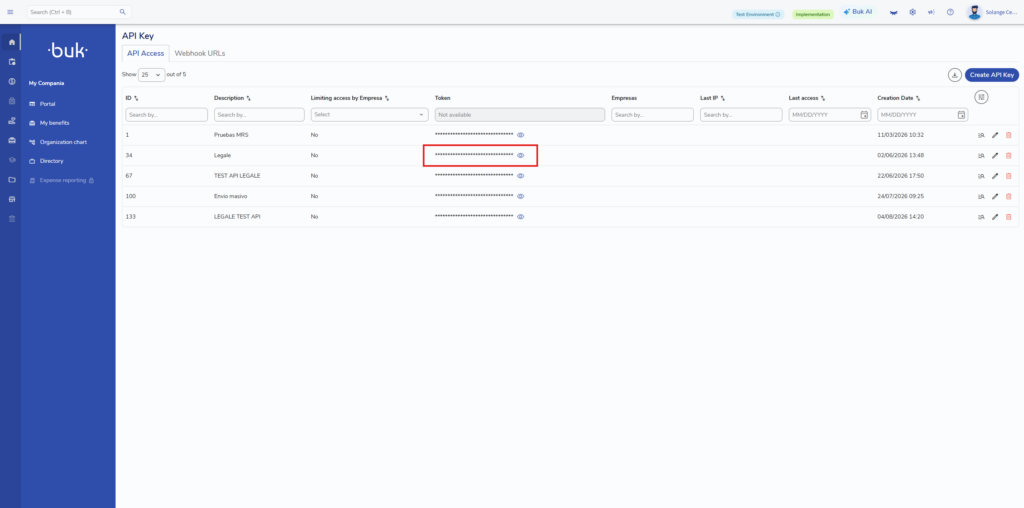
After the API has been created, BUK will display the generated API credential.
Copy the API Key.
This value will be required to complete the integration configuration in Legale.io.
Store the API Key securely and avoid sharing it with unauthorized users.
Return to Legale.io and open:
Settings → BUK
Complete the configuration using:
Base URL
URL BASE https://customer.buk.cl
API Key
Paste the API Key generated in BUK.
After entering both values, click Send to save and validate the integration configuration.
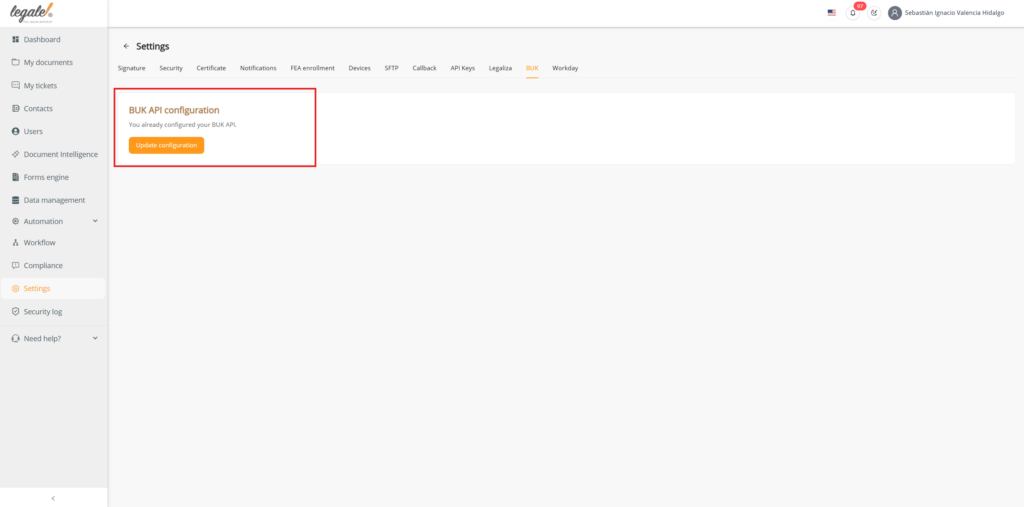
After submitting the configuration, verify that the BUK API is displayed as successfully configured.
This confirms that Legale.io is ready to communicate with BUK.
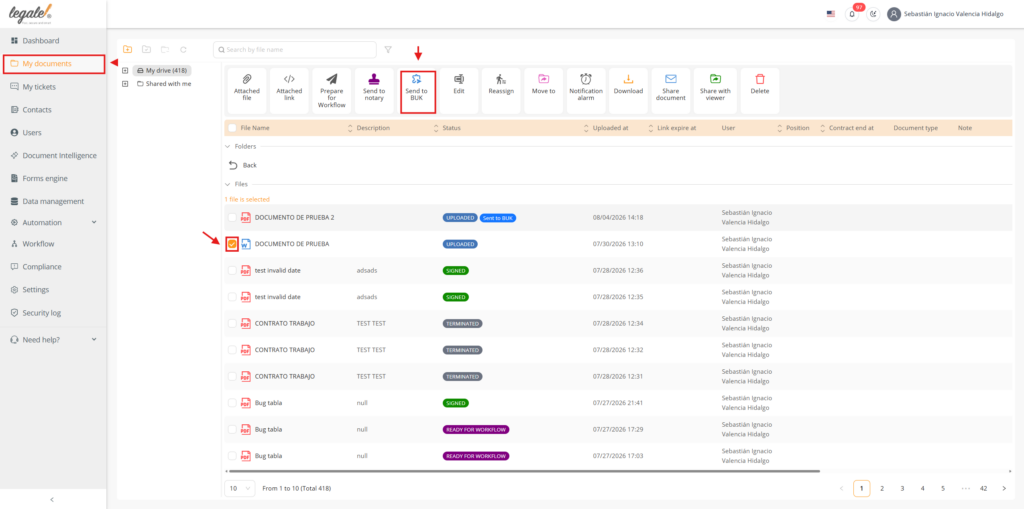
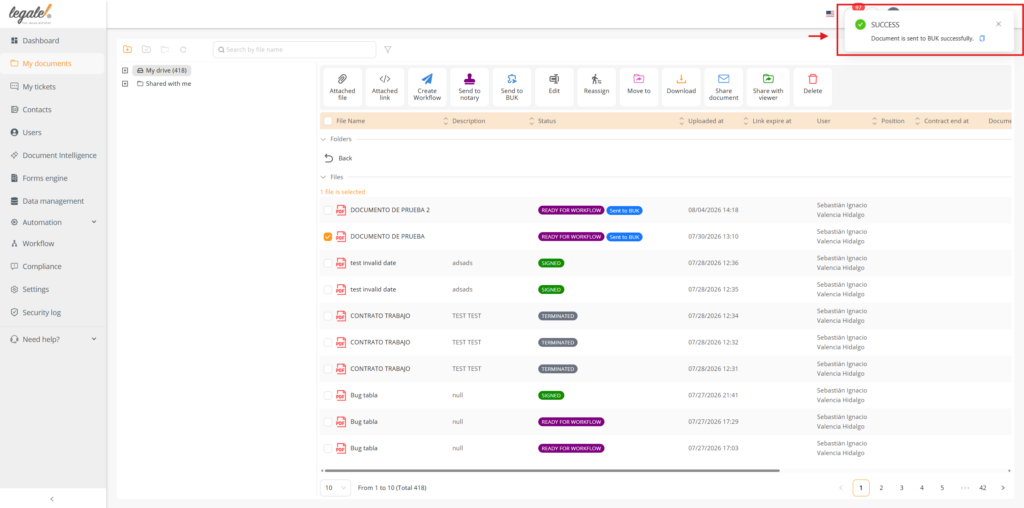
Go to My Documents in Legale.io.
Locate and select the document that you want to send to BUK.
Once the document is selected, the Send to BUK option will become available.
Click Send to BUK.
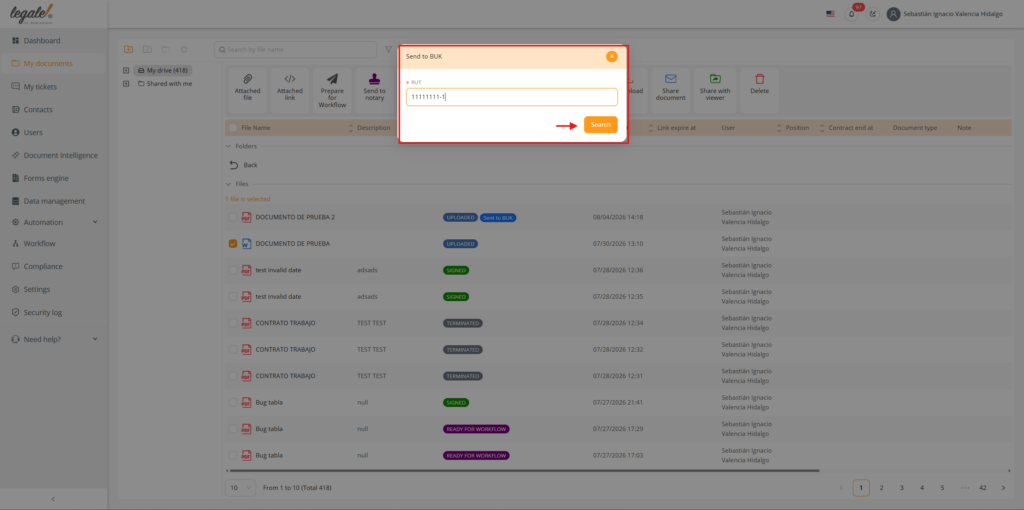
A window will open requesting the collaborator’s RUT.
Enter the RUT of the person who should receive the document in BUK.
After entering the RUT, click Search.
Legale.io will use this information to identify the corresponding collaborator in BUK.
After the collaborator has been identified and the document has been sent, Legale.io will display a confirmation message.
The message will indicate that the document was sent successfully.
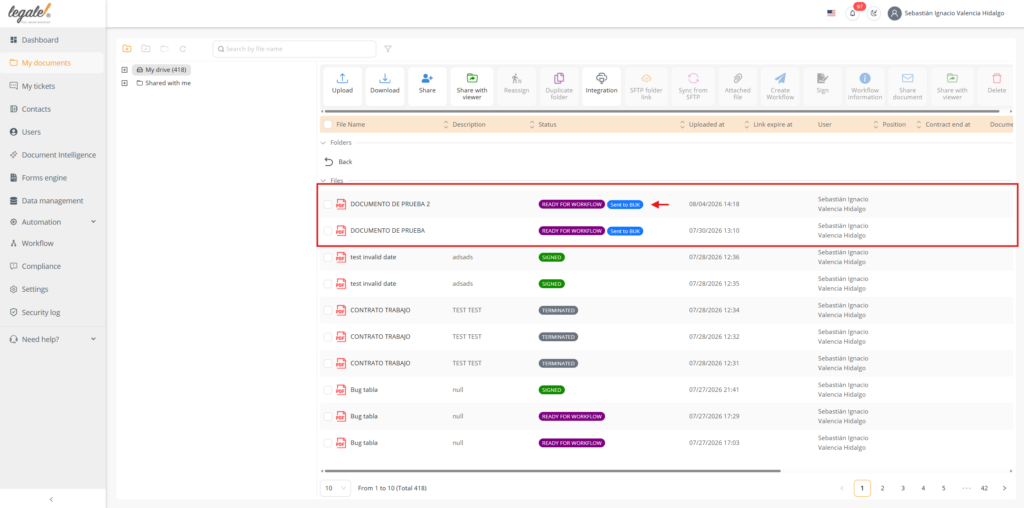
Return to the document list in Legale.io.
The document will display a status indicating that it has already been sent to BUK.
This allows users to identify which documents have been transferred through the integration.
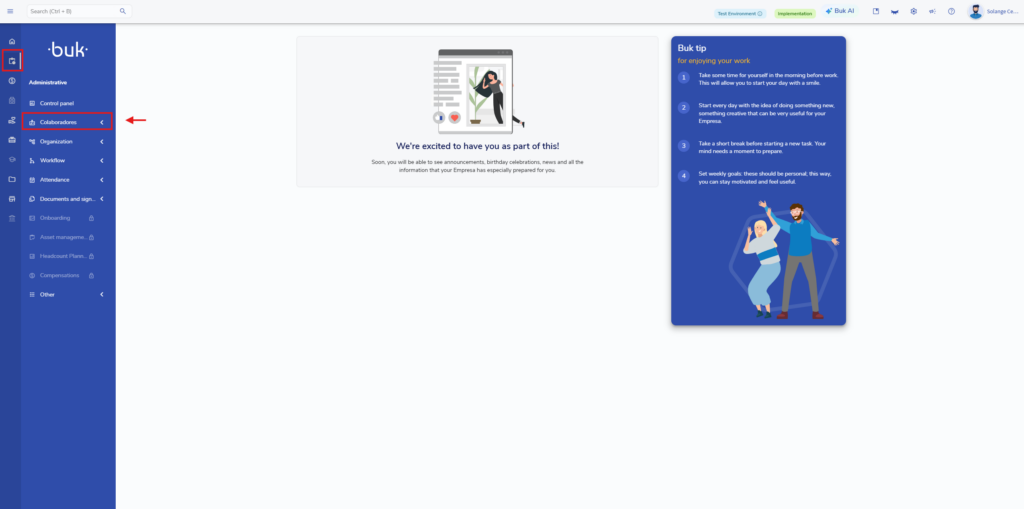
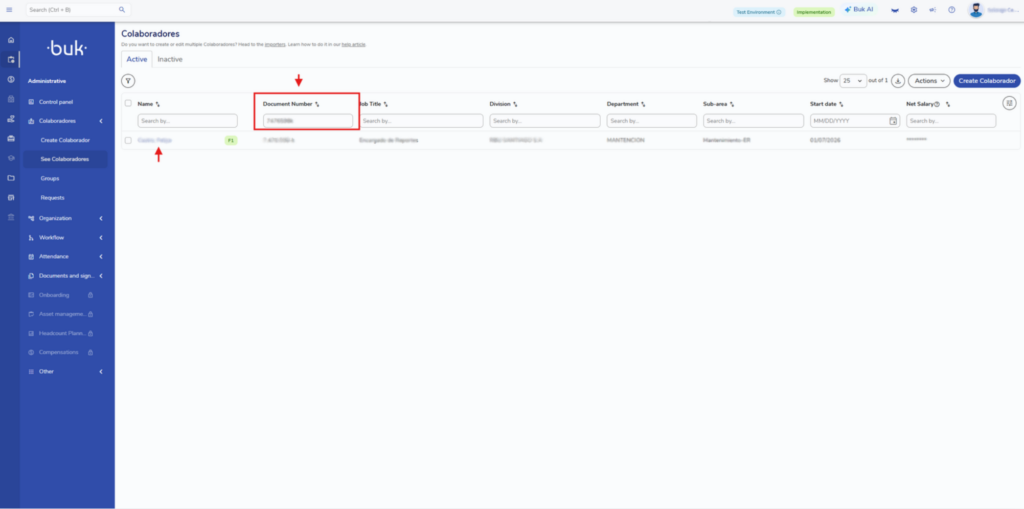
Return to the BUK platform.
Go to the Administrative menu.
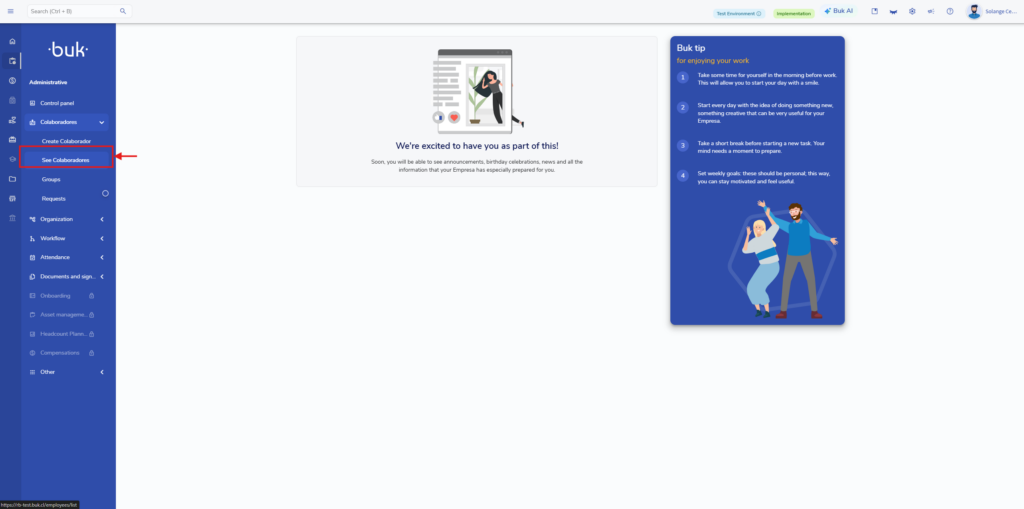
From this section, select Collaborators.
The Collaborators section will display the people registered in BUK.
Search for the collaborator who received the document.
The available search filters may include:
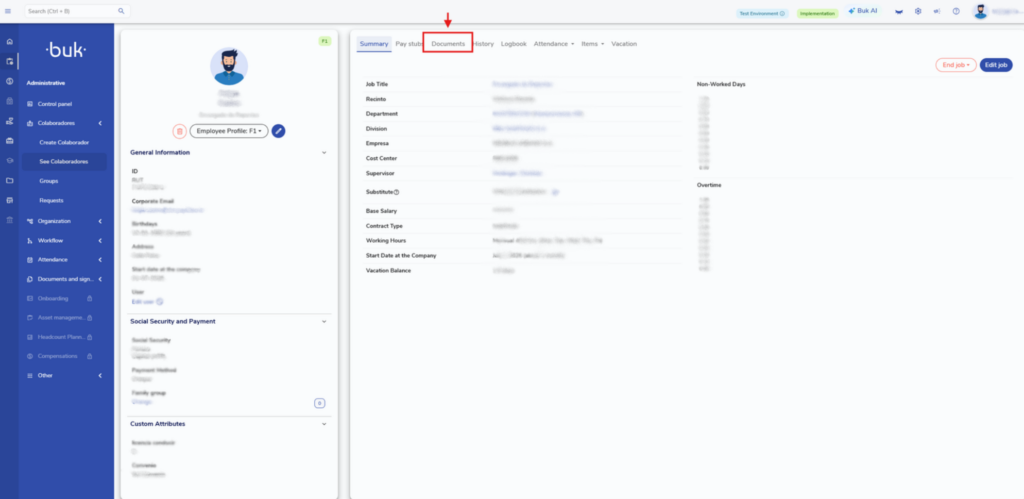
Once the correct collaborator has been located, select their profile.
This will open the collaborator’s detailed information.
Inside the collaborator’s profile, different information and menu options will be displayed.
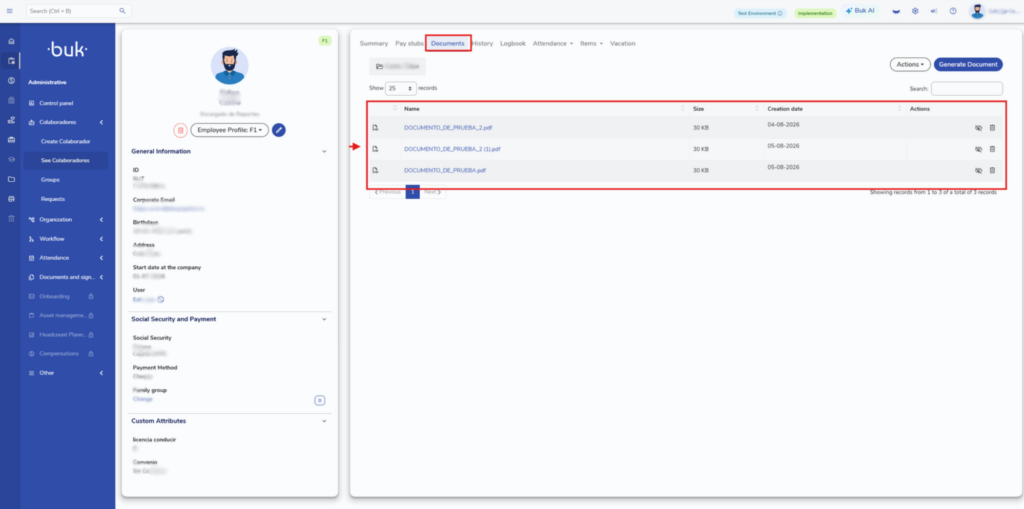
Select the Documents section.
This section contains the documents associated with the collaborator.
Inside Documents, review the documents associated with the collaborator.
The document previously sent from Legale.io should now be available in the collaborator’s BUK profile.
Verify that the expected document appears correctly.
Before configuring or sending documents through the BUK integration, verify that:
https://customer.buk.cl
The API Key should be treated as sensitive information and should only be accessible to authorized users
AI
Finances
Sales and contracts
Human Resources
Legal department
Operations
Security
Chilean Labor Department
Digital Signature
Use this form to reach our agent quickly. We're here to assist you.
Learn how we handle your information in our Privacy Policy.
Less paperwork. More control.
Move every agreement forward.
Make every employee process simpler.
Clear agreements. Confident decisions.
Keep work moving safely.
Everything you need to work smarter.
Explore how your information is protected.
Guidance for digital employment processes.
Explore signing options and quality standards.