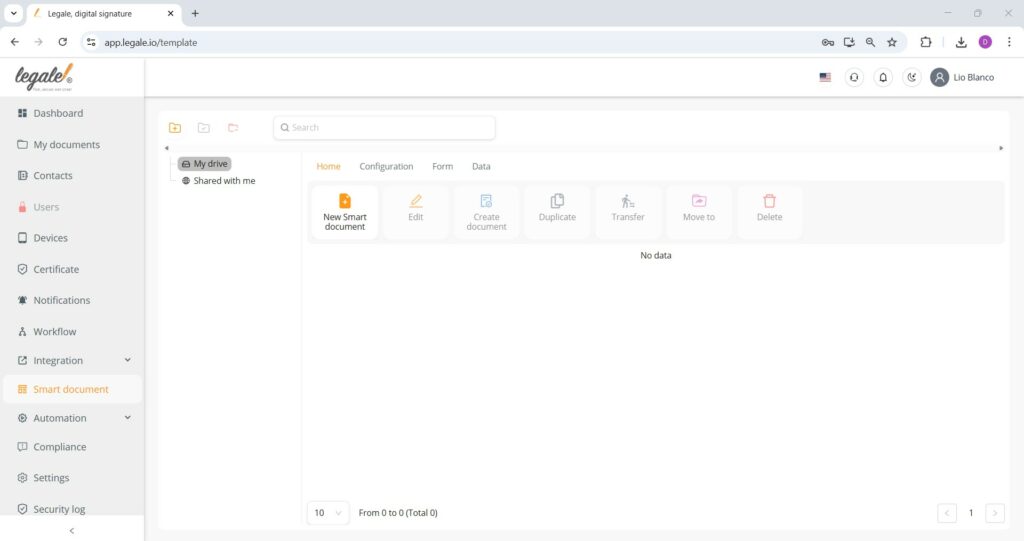
 AI
AIDuplicate Smart Documents
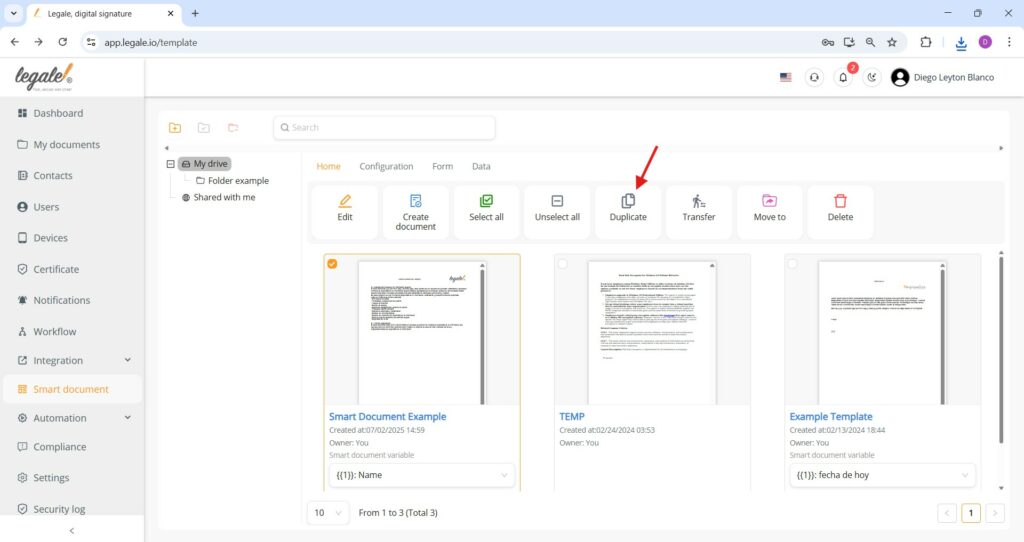
To duplicate a Smart Document, select the desired template from your drive and click the Duplicate button in the top menu. This action creates an exact copy of the selected Smart Document, preserving its content and fields.
Confirming document duplication
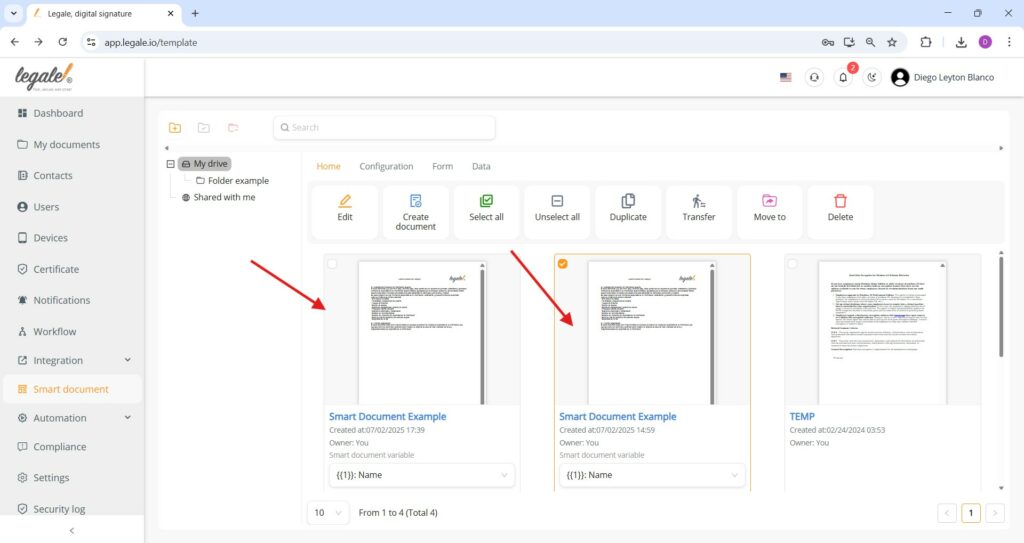
After using the duplicate option, the platform immediately generates an identical copy of the selected Smart Document, placing it next to the original for quick verification and further actions.
Transferring Smart Documents
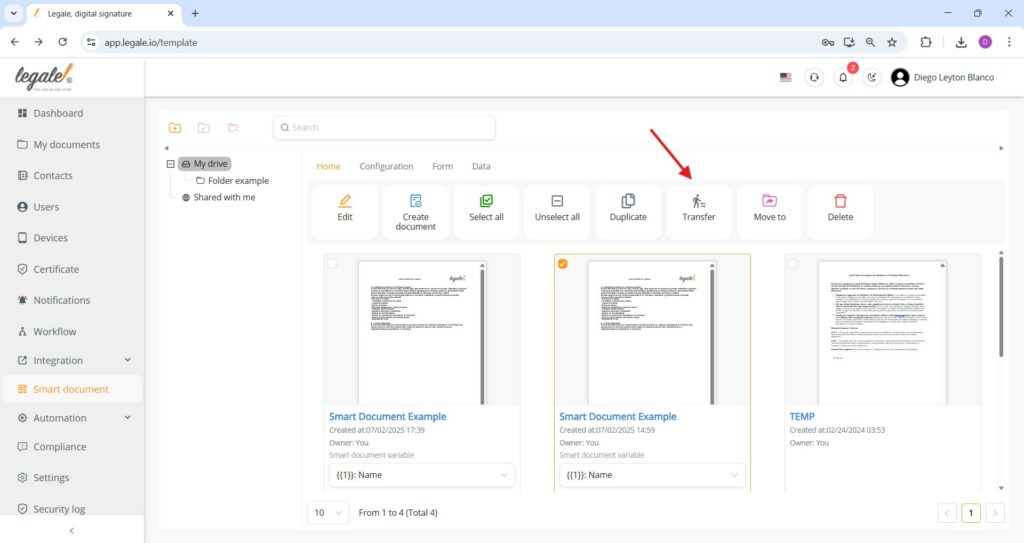
Selecting a Smart Document and clicking the Transfer button allows ownership of the document to be reassigned to another user.
Confirming document transfer
To finalize the transfer, select the recipient’s user from the dropdown menu and click the green “Submit” button, which reassigns ownership of the selected Smart Document to the chosen user.
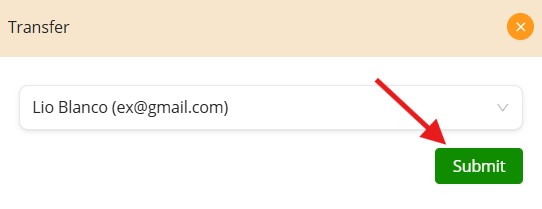
Transfer confirmation
The document now appears under the account of the new user, confirming the successful ownership transfer, with the user’s name shown in the top-right corner and the transferred Smart Document listed in their drive.
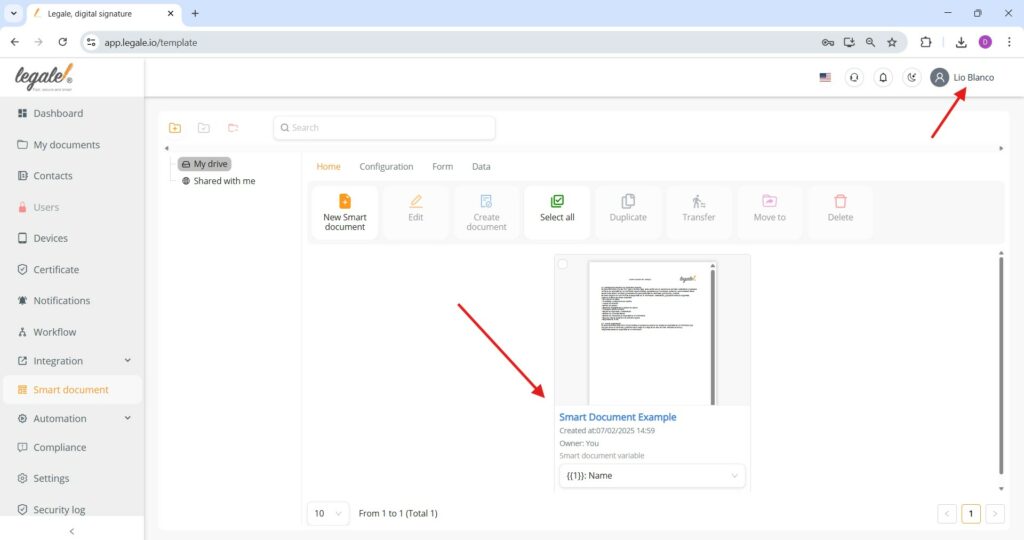
Moving a Smart Document
To relocate a Smart Document to a different folder, select the document and click the Move to button located in the top toolbar, represented by a folder icon with an arrow.
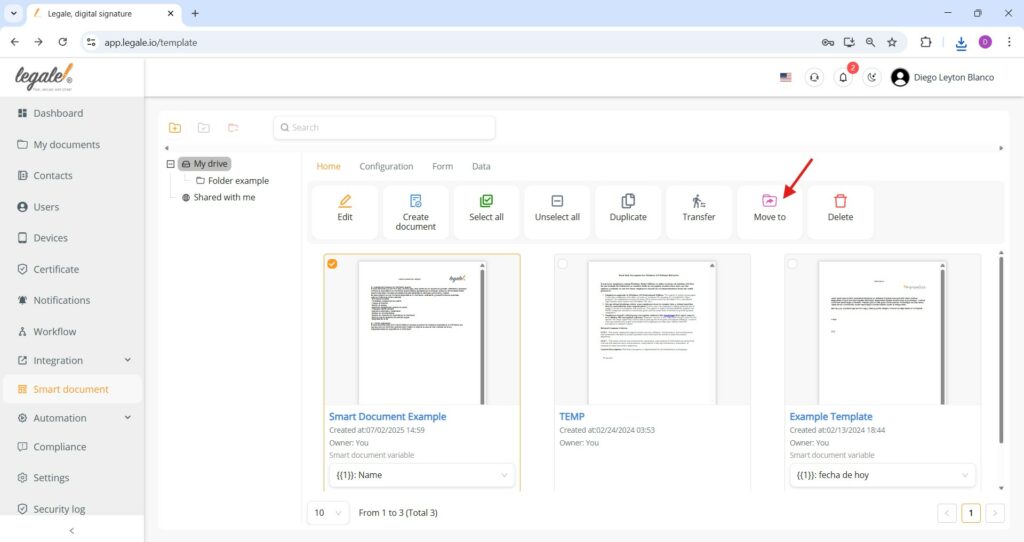
Confirming folder selection
Once the destination folder is chosen from the dropdown menu, clicking the green “Submit” button completes the action, moving the selected Smart Document to the specified folder.
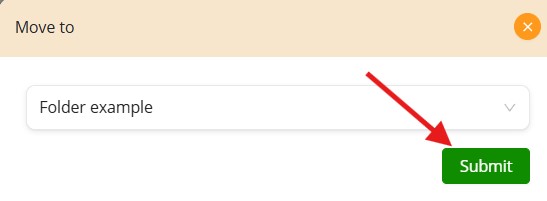
Verifying folder relocation
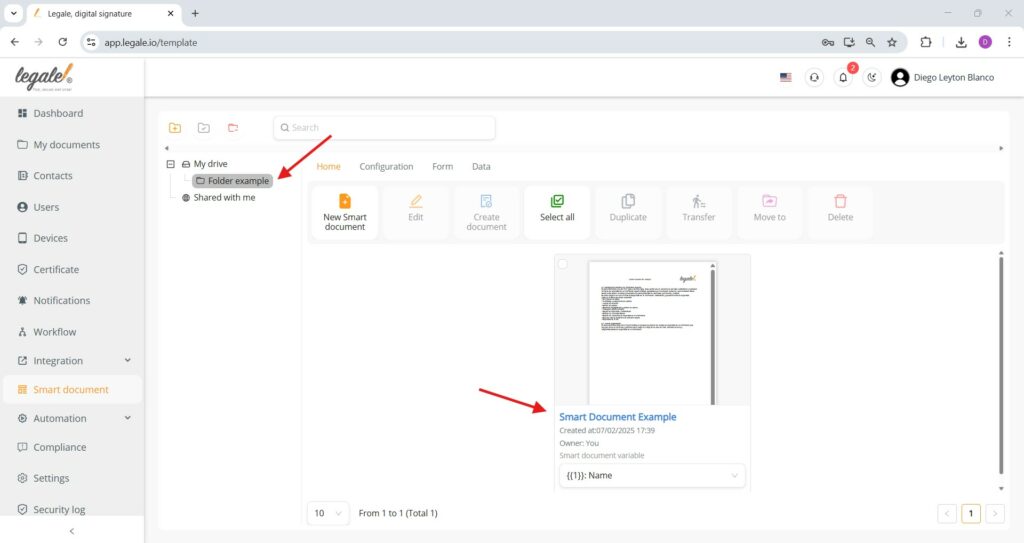
The Smart Document now appears within the selected destination folder “Folder example”, confirming that the move operation was successfully executed.
Deleting a Smart Document
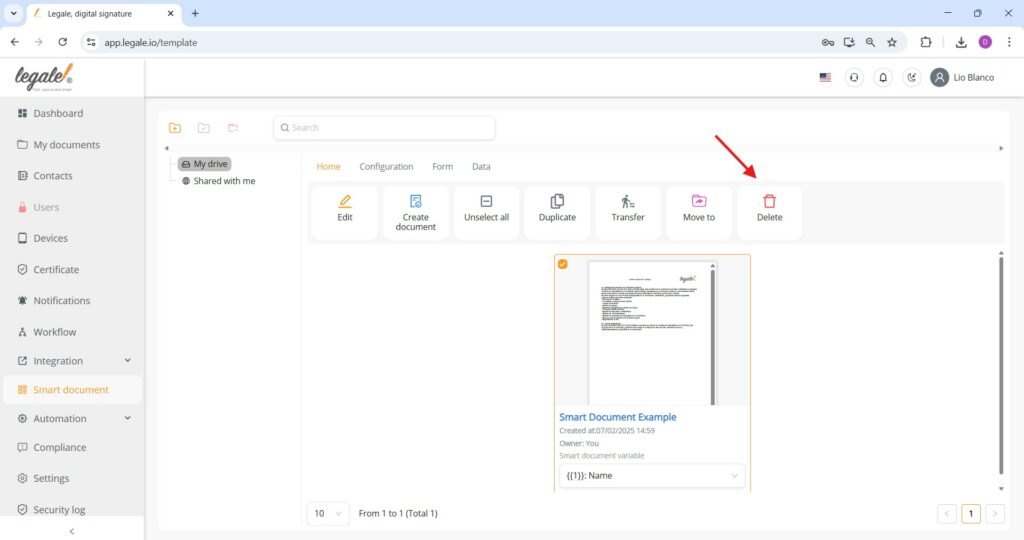
To remove a Smart Document from the drive, simply select it and click the Delete button represented by a trash bin icon; this action permanently removes the document from your list.
Deletion confirmation
Once a Smart Document is deleted, it is permanently removed from the list and no longer appears in the document overview, confirming successful deletion.