 AI
AIIntegrating documents from My drive or specific folders
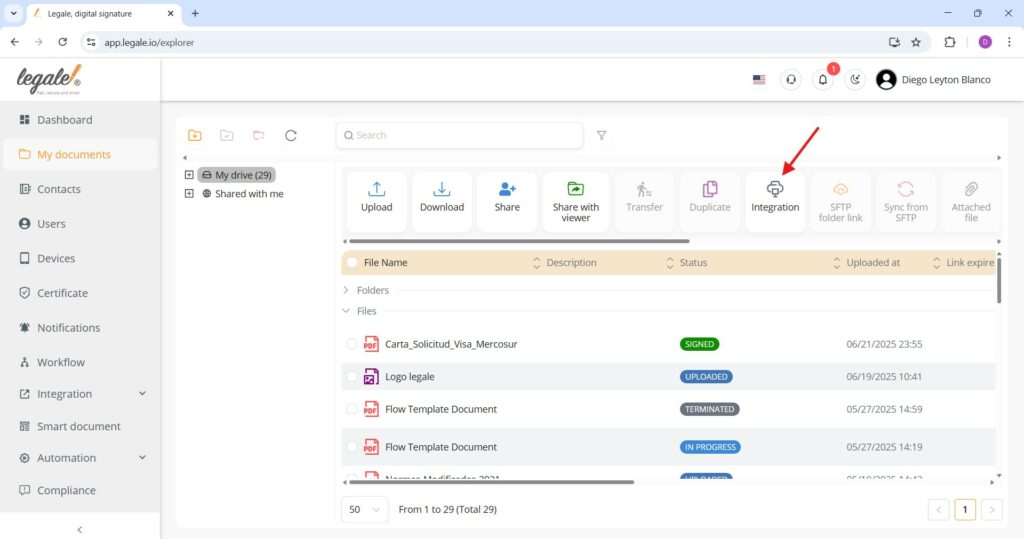
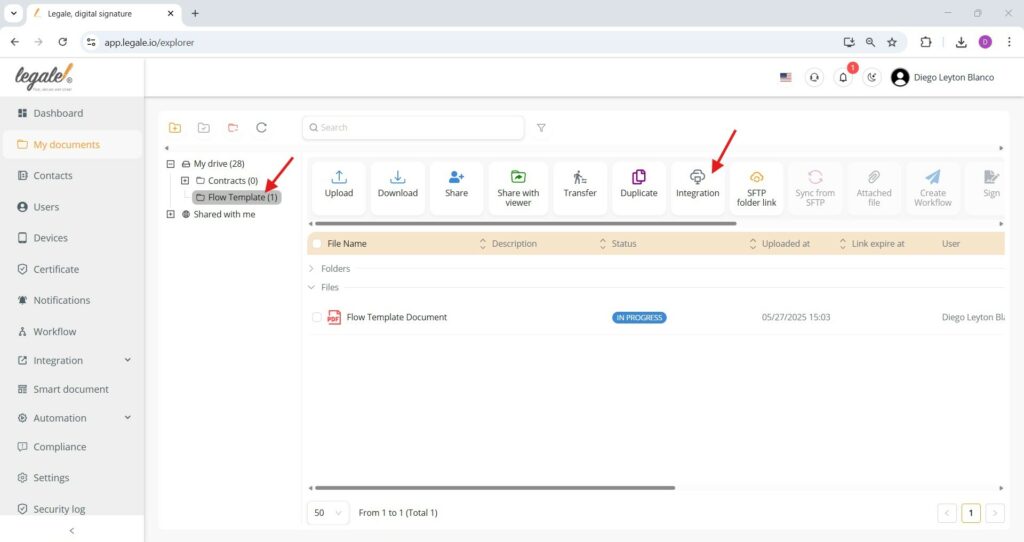
To integrate files from both the general “My drive” and a specific folder such as “Flow Template,” begin by navigating to the appropriate section in your document repository within the Legale platform. If you select “My drive” before clicking “Integration,” the action will apply to all documents contained in that section. Conversely, if you click into a specific folder (e.g., “Flow Template”) and then press “Integration,” the system will integrate only the content of that selected folder.
To configure SFTP integration https://legale.io/docs/6720/
Linking a specific folder with SFTP
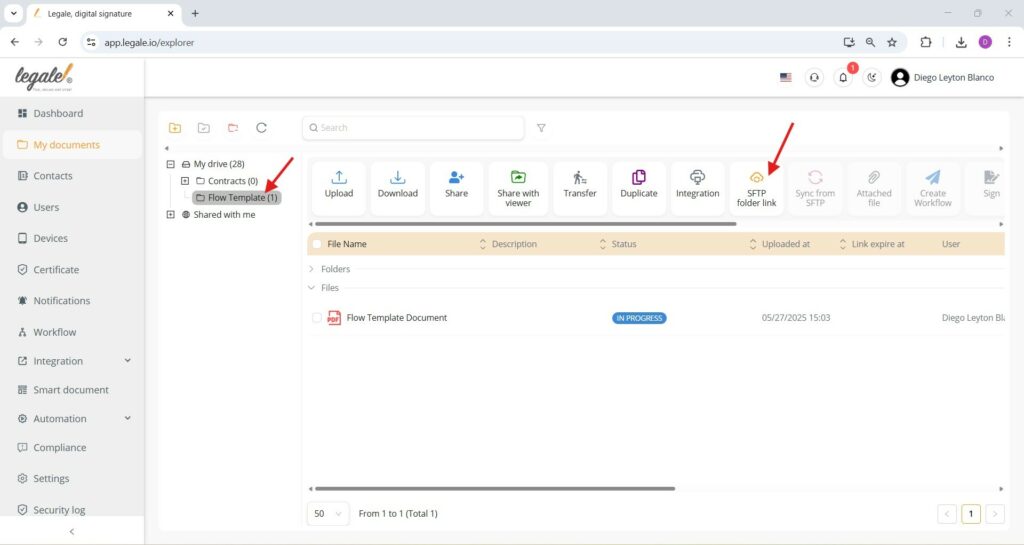
To link a specific folder to SFTP within the Legale platform, start by navigating to the folder you want to sync—in this example, the “Flow Template” subfolder inside “My drive.” Once the folder is selected, click the “SFTP folder link” button from the top menu. This action initiates the linking process, allowing the folder’s contents to synchronize directly with your configured SFTP server.
Setting the SFTP folder link
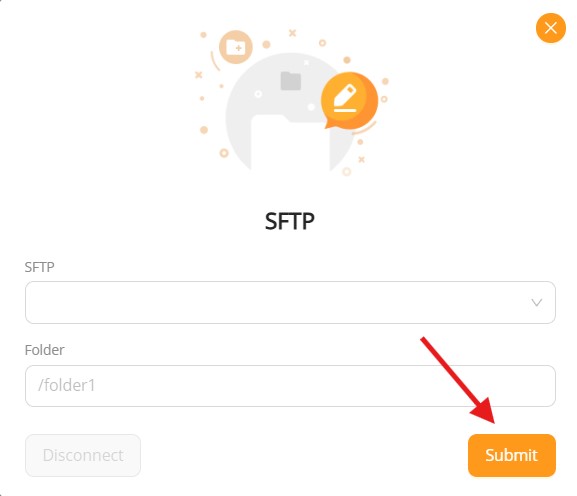
To complete the SFTP folder linking process in Legale, a pop-up window appears prompting you to configure the connection. In this window, choose or enter the SFTP destination in the SFTP field, and specify the target folder path in the Folder field (e.g., /folder1). Once both fields are filled, click the orange “Submit” button to establish the connection.