
 AI
AI
Finances
Sales and contracts
Human Resources
Legal department
Operations
Security
Chilean Labor Department
Digital Signature
This functionality allows users to edit an existing signer or validator configuration within a workflow without recreating the entire process.
The following steps explain how to open an existing workflow, access the Signers and Validators panel, and edit the configured signature process.
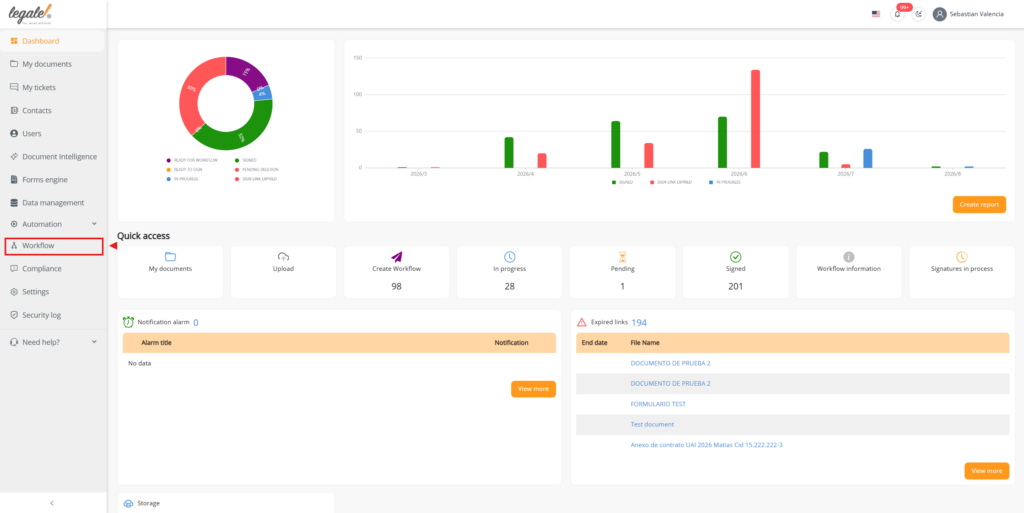
Log in to the Legale platform and go to the left-side menu.
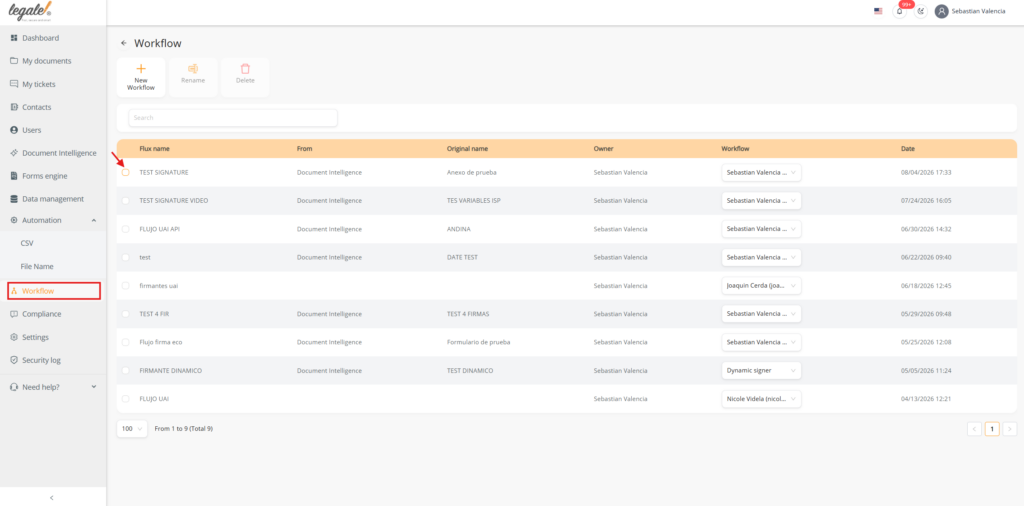
Click Workflow to access the list of previously created workflows.
Inside the Workflow section, locate the workflow you want to edit.
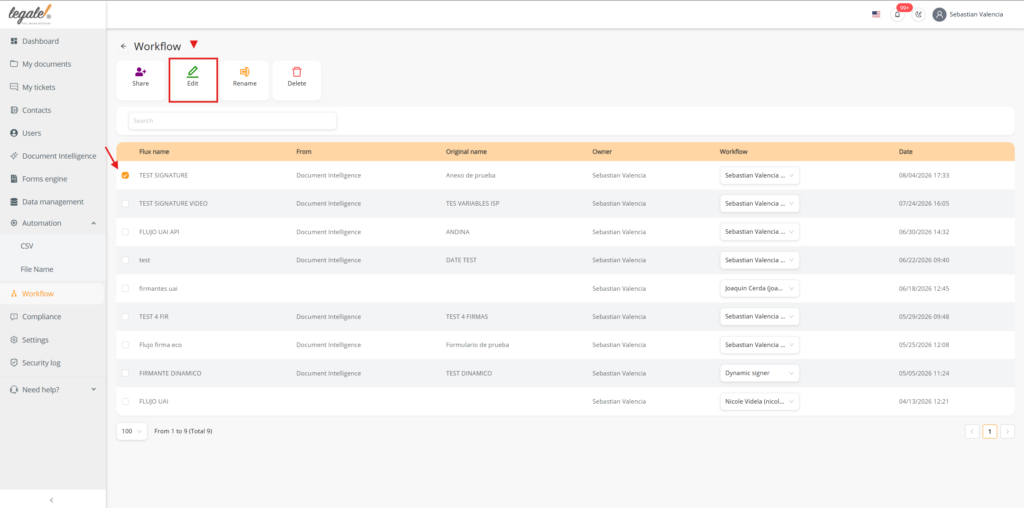
Select the corresponding workflow from the list.
After selecting the workflow, click the Edit button.
This will open the selected workflow so you can review and modify its current configuration.
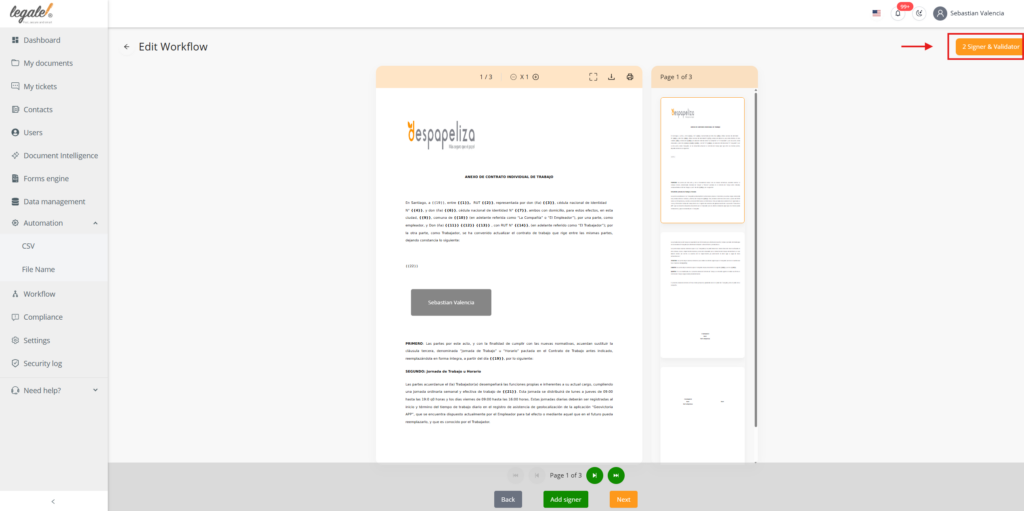
Once the workflow is opened, the document will be displayed.
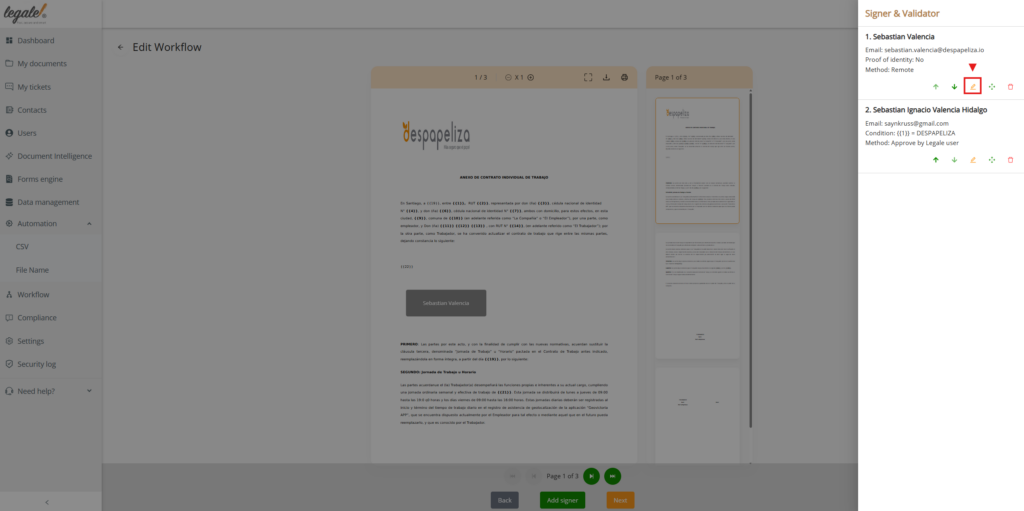
On the right side of the screen, an orange sidebar will appear showing the workflow details, including the Signers and Validators section.
Click the Signers and Validators section.
A window will open showing the participants currently configured in the workflow, including signers and validators.
In this window, a pencil icon will appear next to each participant, allowing the configuration to be edited.
Click the pencil icon next to the signer or validator you want to modify.
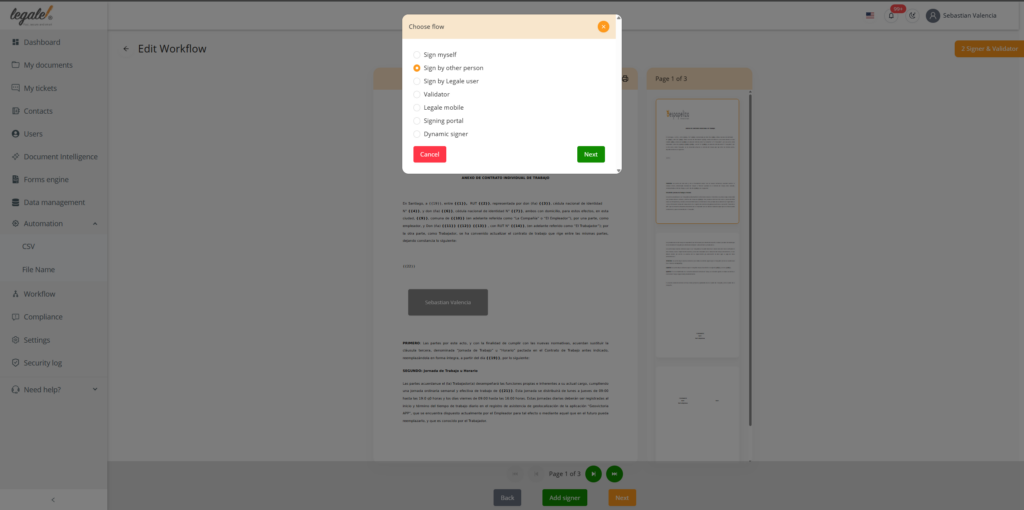
The platform will open the editing window, where you can update the process configuration, including the signature settings or any other step related to that participant.
The selected signer or validator can be edited directly from the workflow.
This allows users to update the signature process without deleting and recreating the participant configuration from the beginning.
Before saving the changes, verify that:
AI
Finances
Sales and contracts
Human Resources
Legal department
Operations
Security
Chilean Labor Department
Digital Signature
Use this form to reach our agent quickly. We're here to assist you.
Learn how we handle your information in our Privacy Policy.
Less paperwork. More control.
Move every agreement forward.
Make every employee process simpler.
Clear agreements. Confident decisions.
Keep work moving safely.
Everything you need to work smarter.
Explore how your information is protected.
Guidance for digital employment processes.
Explore signing options and quality standards.