 AI
AIImport CSV to fill smart documents in bulk
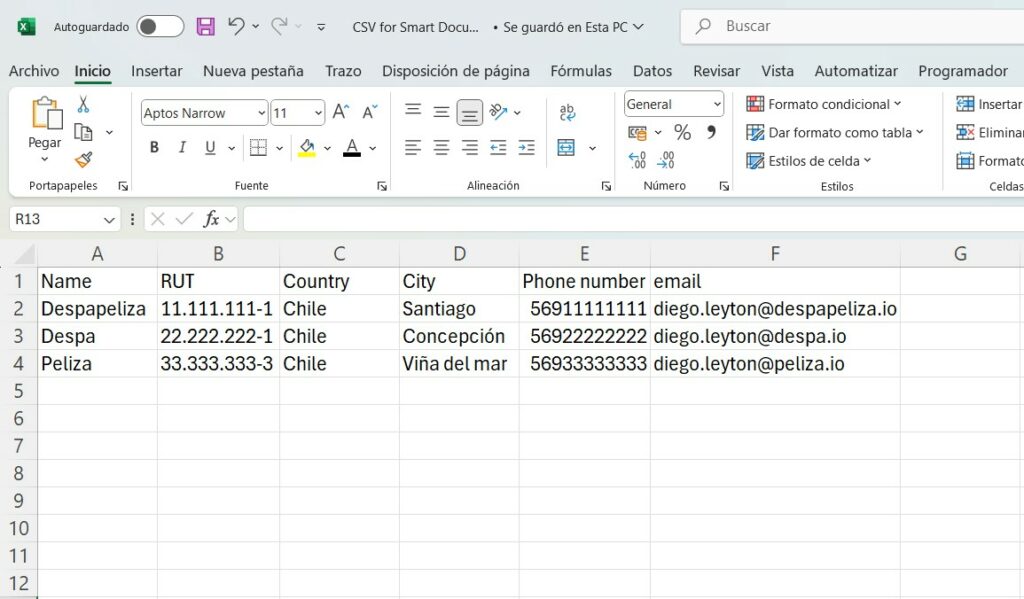
To fill smart documents massively, prepare a CSV file with headers matching the variables configured in your Smart Document (e.g., Name, RUT, Country, City, Phone number, Email), and populate each row with the corresponding data for each recipient. This CSV will be imported into the platform, automatically generating and sending a personalized Smart Document for every row of data, greatly simplifying large-scale form distribution and signature collection.
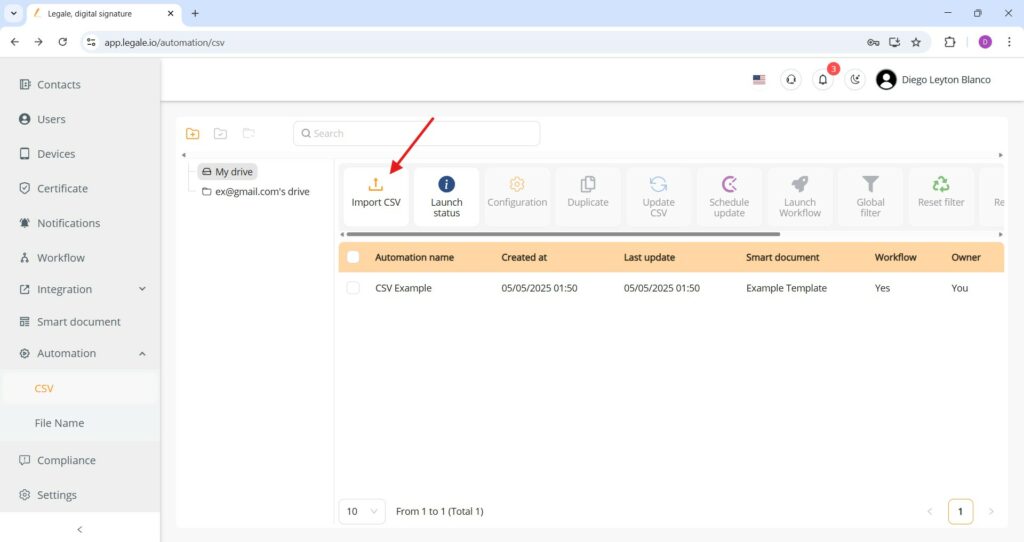
CSV upload interface for Smart Document automation
From the Automation > CSV section, click Import CSV to begin uploading your prepared spreadsheet.
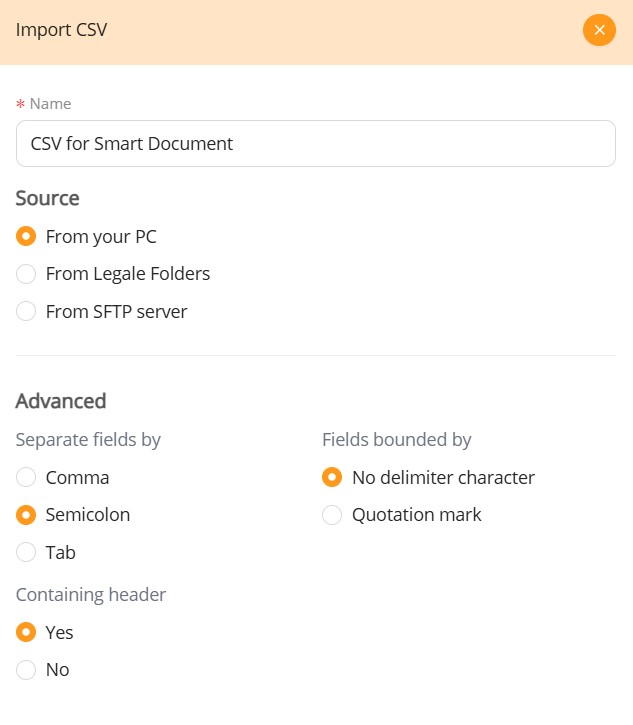
CSV import configuration
Assign a name to your CSV import task and choose the file source—typically “From your PC.” In the Advanced section, define the delimiter used in your file (e.g. Semicolon) and whether fields are enclosed with quotation marks or not. If your CSV includes a header row with column names (e.g. Name, RUT, Email), ensure “Containing header” is set to Yes to match variables accurately during document generation.
Saving the CSV file correctly
Before importing your data into Legale, ensure your spreadsheet is saved as CSV UTF-8 (Comma delimited) (*.csv). This encoding and delimiter setting is crucial for preserving special characters and for accurate field separation, enabling the Smart Document system to correctly read and assign values to the variables in your workflow.

Uploading the CSV file
Once the CSV file is ready and properly formatted, upload it by either dragging the file into the designated area or clicking to browse and select it manually. After the file appears listed, press the Submit button to begin the import process.
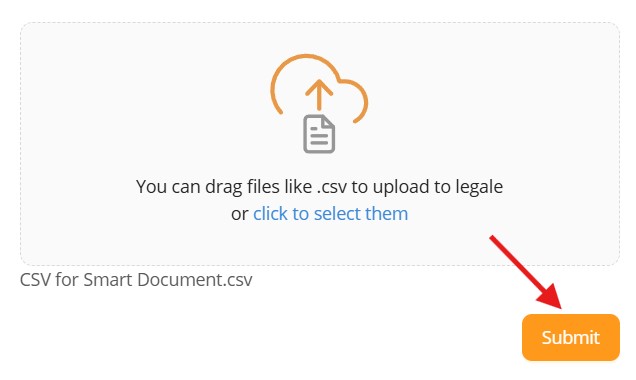
CSV import displayed in automation list
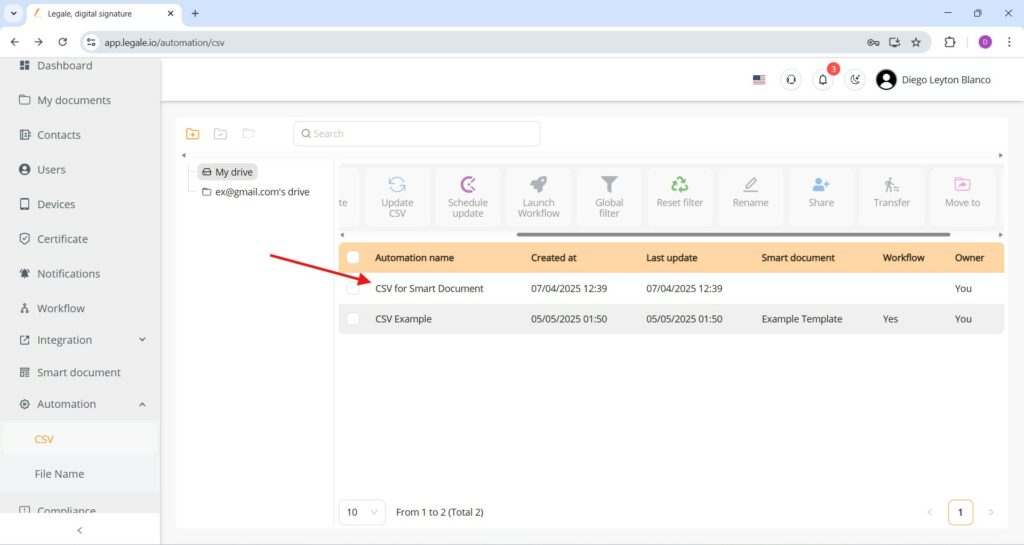
After submitting the CSV file, the new automation entry titled “CSV for Smart Document” appears in the automation list, showing the creation and last update timestamps.
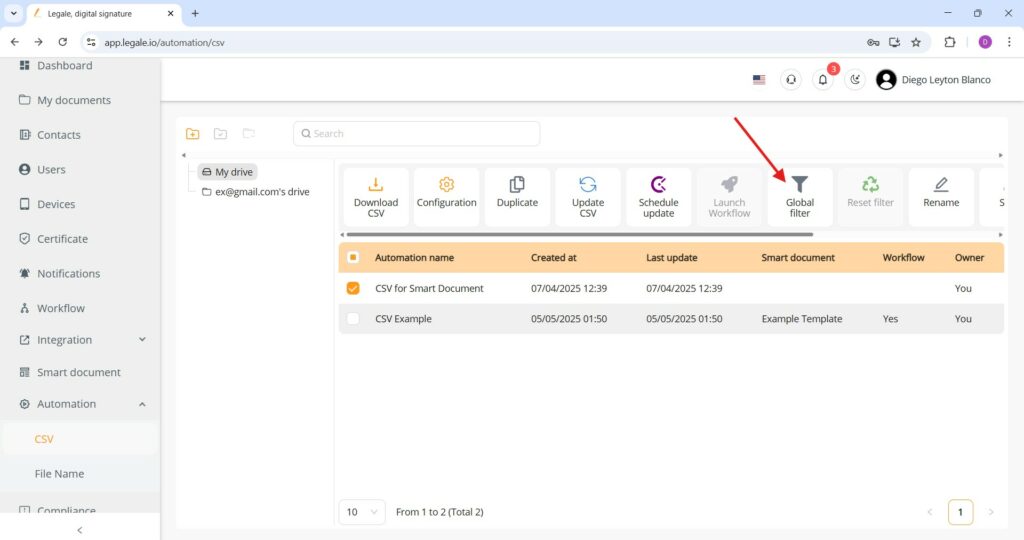
Global filter
With the automation “CSV for Smart Document” selected, the Global filter option is accessible, allowing for dynamic filtering of the imported data.
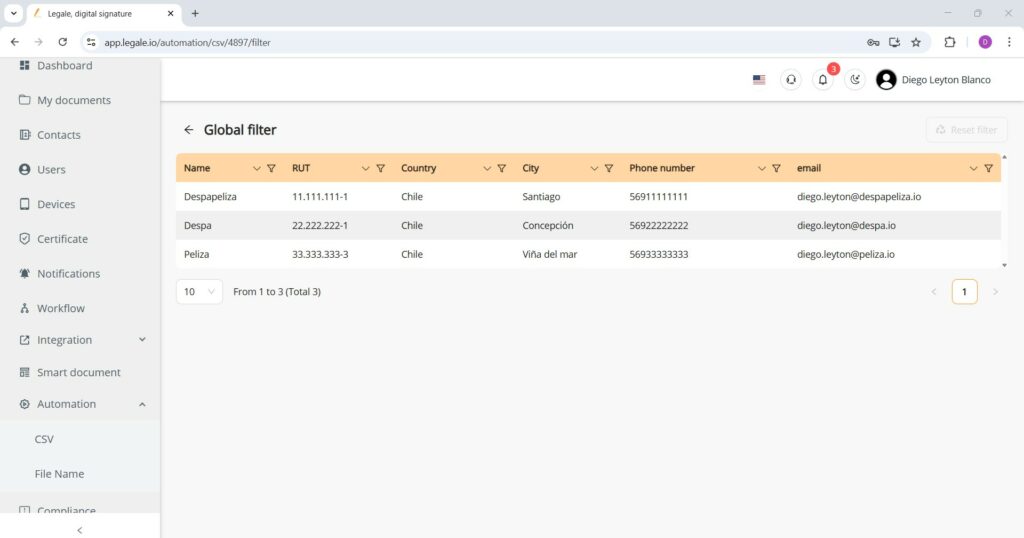
Global filter view after CSV import
After importing the CSV file, the global filter view displays all records contained in the file, showing fields such as Name, RUT, Country, City, Phone number, and Email, which confirms that the data has been successfully parsed and is ready for processing; this view allows filtering or segmenting recipients before executing the workflow, enabling precise targeting or review of individual entries prior to sending smart documents.