
 AI
AIObjective: Use alerts and notifications to avoid missing deadlines or critical actions.
Español
English
Português
Steps:
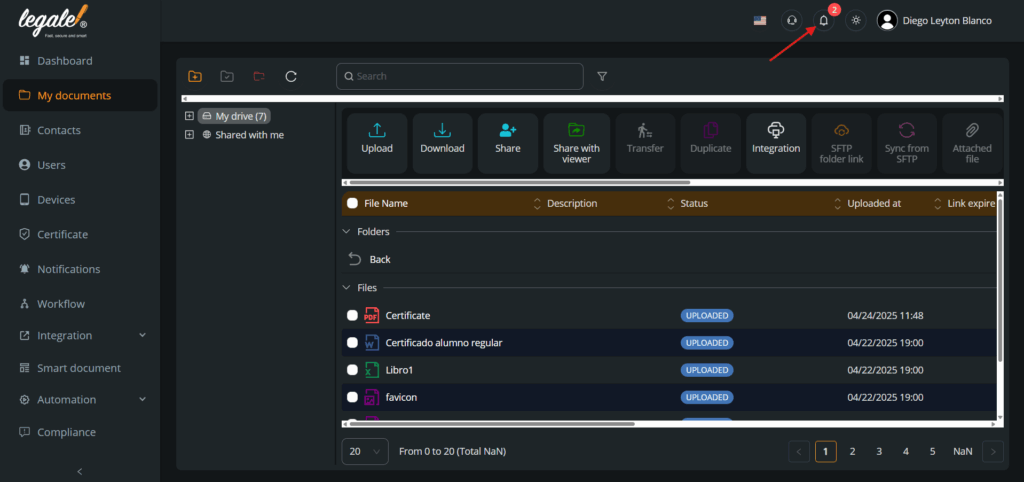
1. View notifications from the top panel
Click on the bell icon located in the upper right corner to see the latest notifications generated.
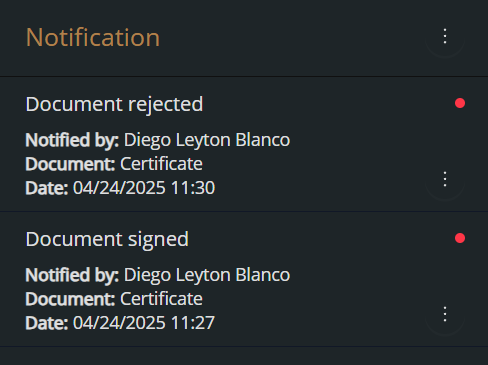
2. Check recent notifications
From the notifications history, you can view events such as signed or rejected documents, along with their date and associated user.
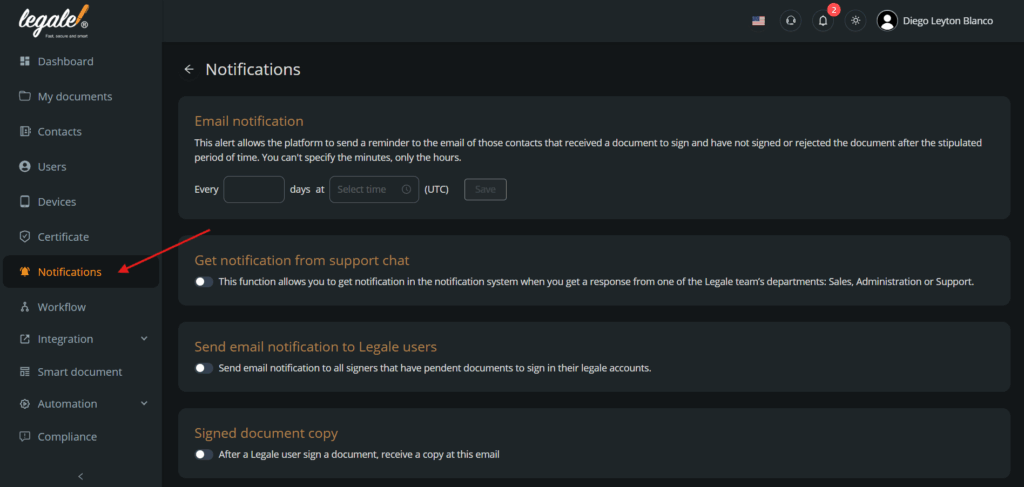
3. Access the Notifications section
From the left-hand side menu, click on Notifications to manage all available alerts.
4. Schedule email notifications
Enable the Email notification option. This allows you to send reminders by email to contacts who have received documents but haven’t signed or rejected them.

5. Enable notifications from support chat
Enable Get notification from support chat to receive alerts when the Legale team (sales, support, or admin) replies to you.

6. Send reminders to Legale signers
Enable Send email notification to Legale users so that signing users receive alerts about documents pending signature.

7. Enable signed document copy
Enable Signed document copy so that signers receive a copy of the document by email once it has been signed.

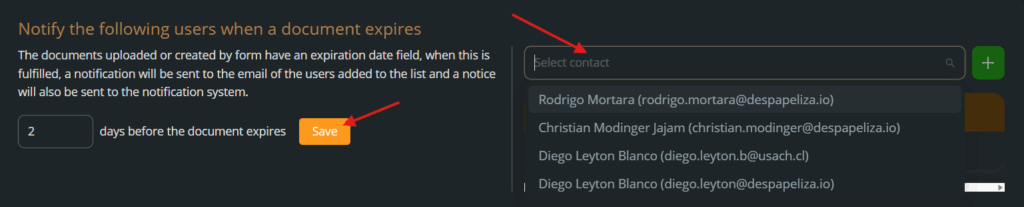
8. Alerts for document expiration
Set how many days before expiration users should be alerted. Add recipients from the contact list and save.
9. Enable alert for automatic document uploads
Enable the Document upload email option to receive an email whenever a document is uploaded via API or supplier integration.

Suggested actions for each type of alert you receive:
- Document expiration email: Review the document and contact the responsible party to renew or delete it, if necessary.
- Pending signature alert: Review the document and sign or reject it before expires.
- Rejected document notification: Review the reason for rejection, make the necessary changes, and send it again for signature.
- Notification of API/supplier upload: Verify that the documents were received correctly and are ready for review or signature.
- Support chat reply: Check the message from the Legale team and reply, or escalate internally if further action is required.