
 AI
AIObjective: Manage who has access and what they can do within the platform.
Español
English
Português
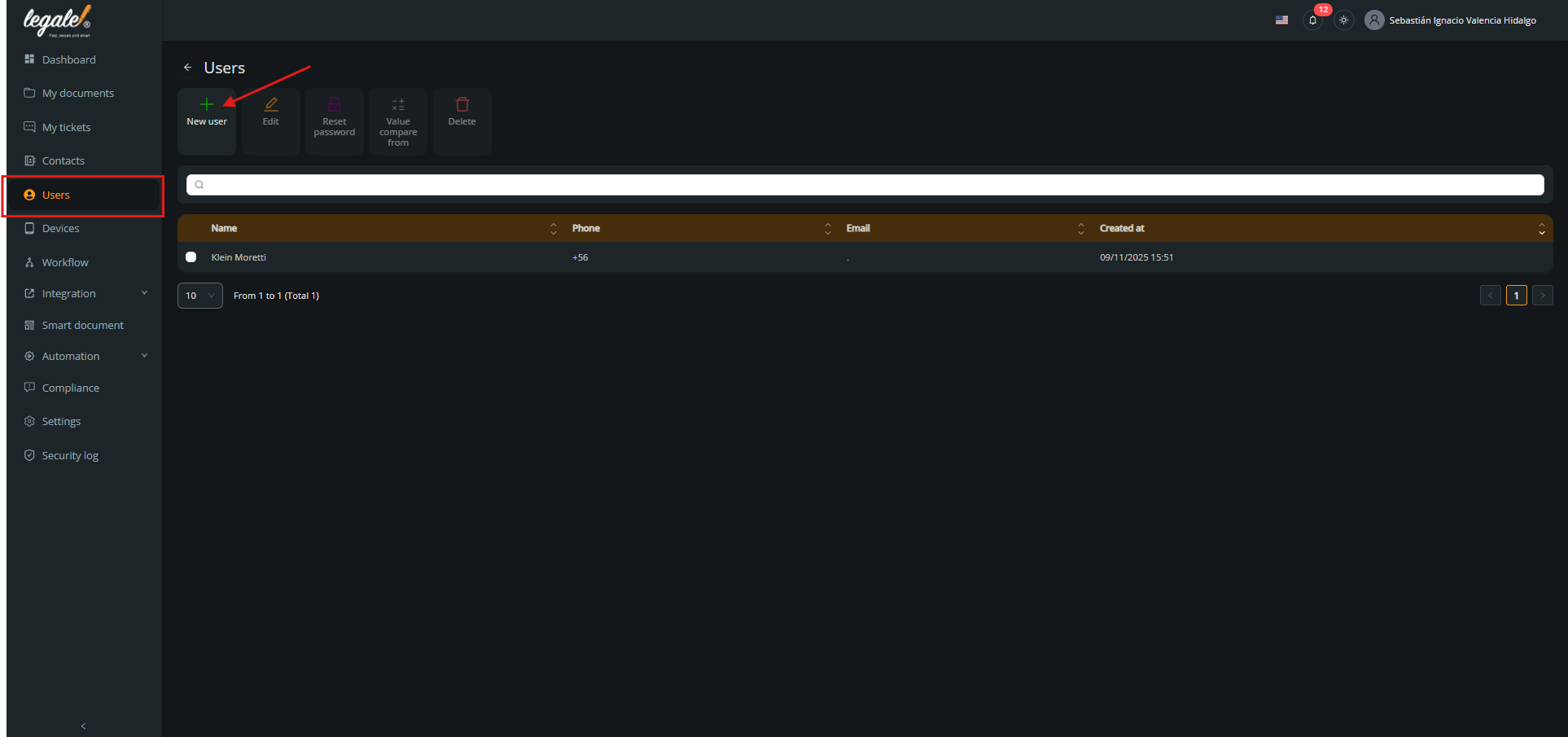
1. Go to Users
From the left-hand menu, click on Users to access the user management section.
Click on the New user button to open the new user creation form.
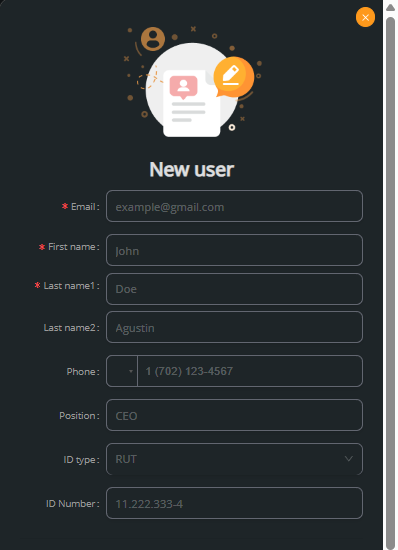
2. Fill in the user details
Complete the required fields: email, first name, last names, phone number, position, ID type, and ID number.
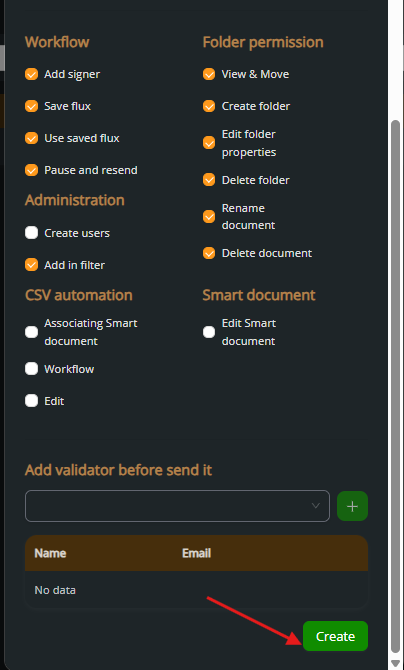
Configure the available roles and permissions grouped by module:
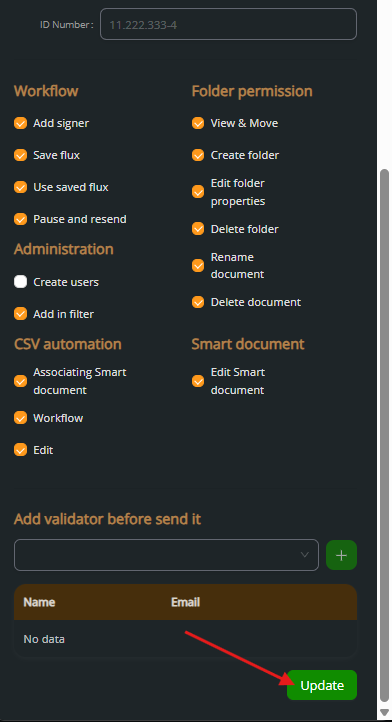
Workflow: Add signer, save flow, use saved flow, pause and resend.
Folder permission: View/Move, create folder, edit folder properties, delete, rename documents.
Administration: Create users, add in filter.
CSV automation and Smart document: Associate documents, edit smart documents.
Finish by clicking Create to save the user.
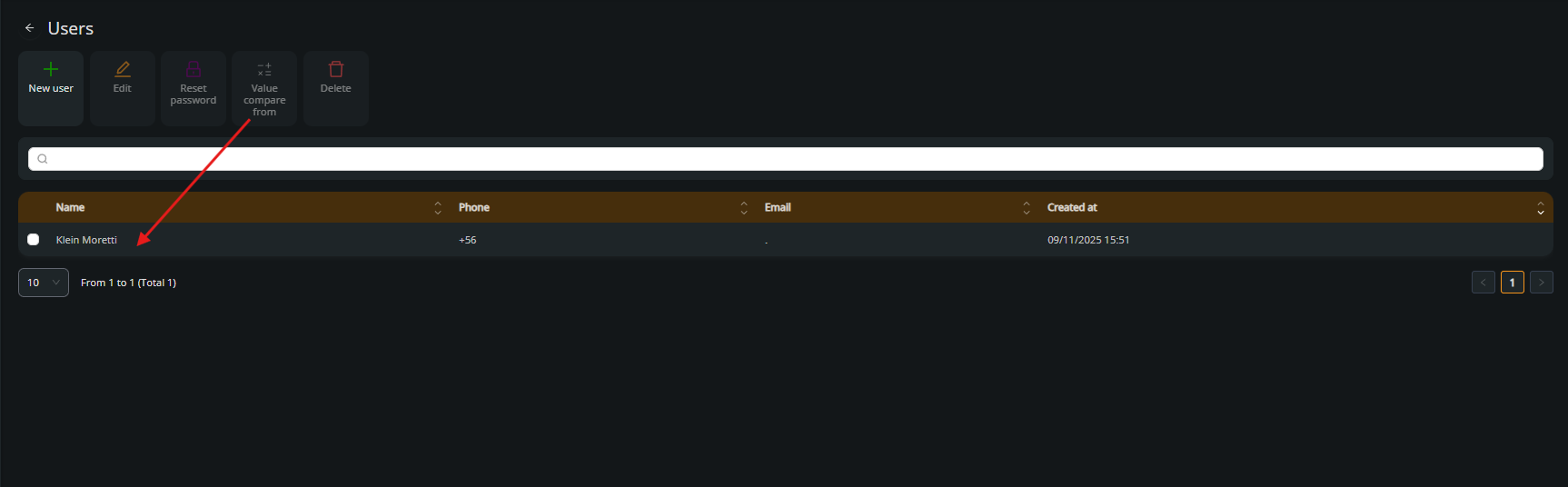
3. User successfully created
Once created, the user will appear in the list with their name, email, and creation date.
4. Edit a user
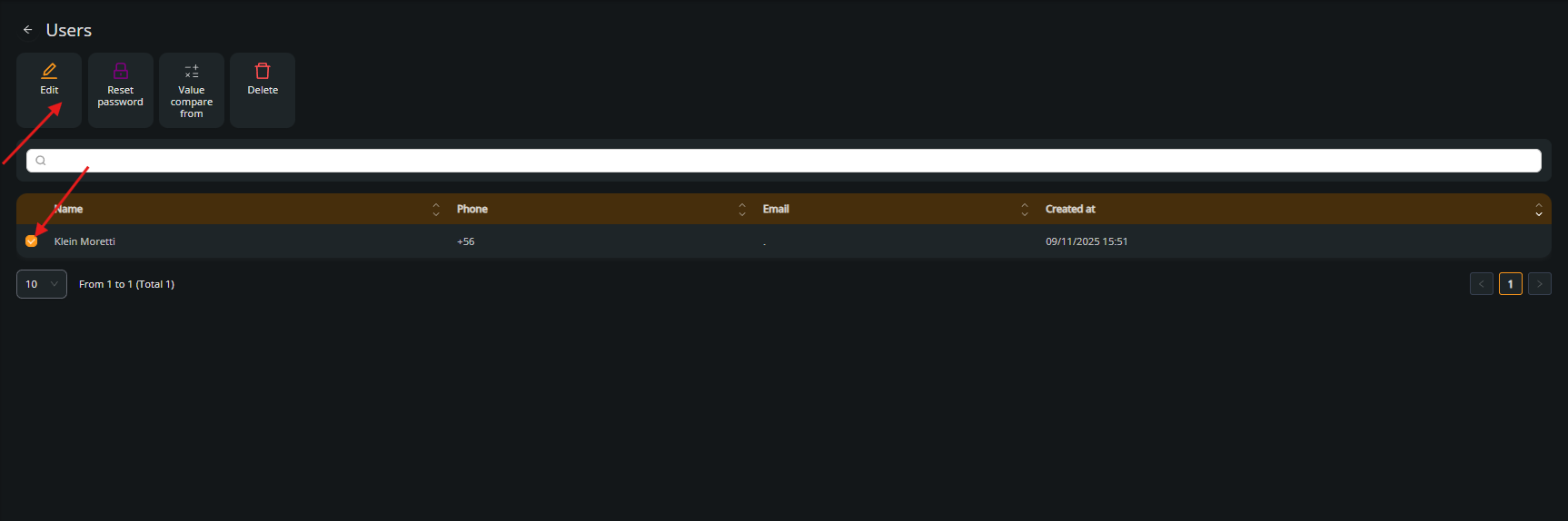
Select the user and click on Edit to configure what actions they are allowed to perform.
5. Confirm and save changes
Edit credentials and enable or disable the appropriate permissions for the user, then click Update.
6. Select the user to delete
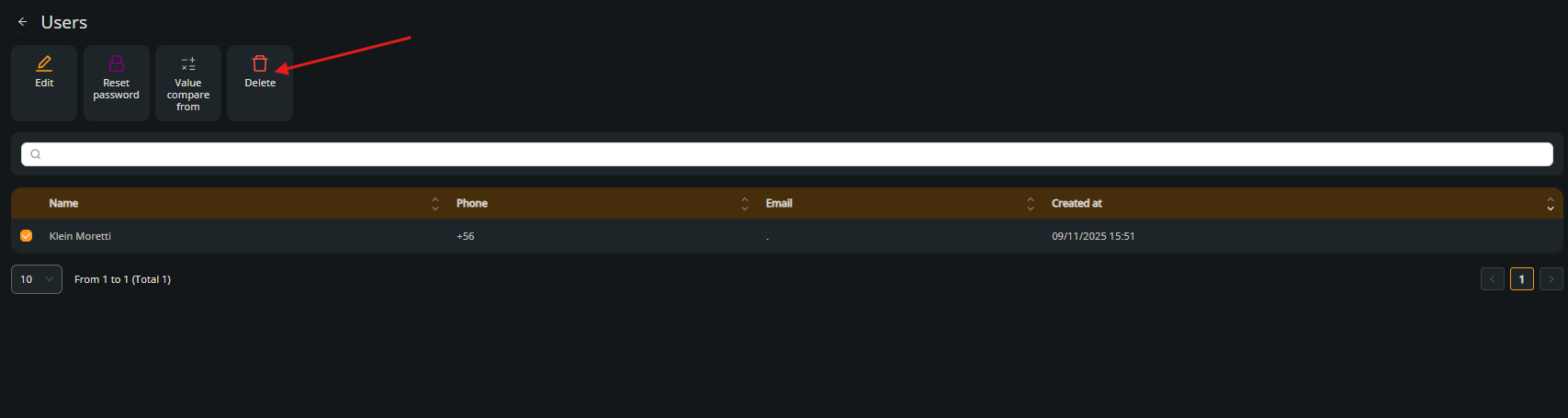
Check the box of the user you want to remove and click Delete.
7. Confirm the email and delete
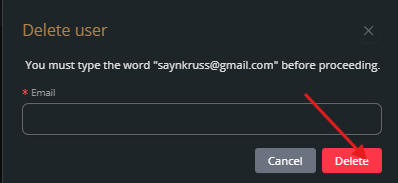
Type in the email address of the user to validate the deletion, then click Delete.
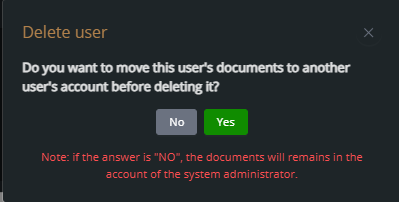
8. Confirm document handling before deletion
The system will ask if you want to move the user’s documents to another account before deleting.
9. User deleted
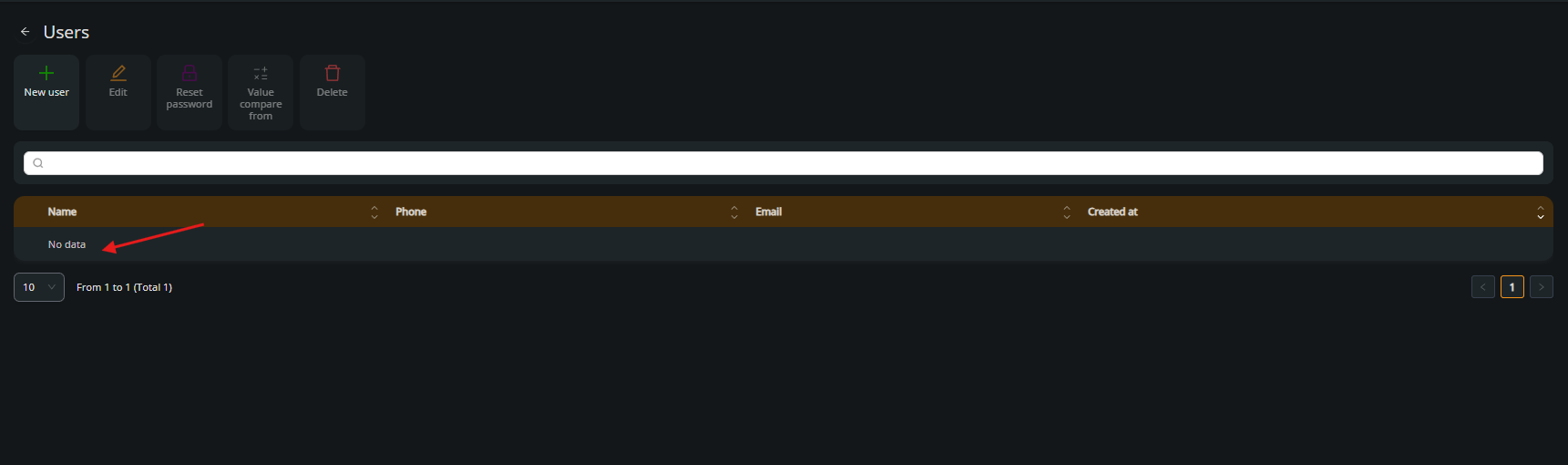
The user is now removed from the system and no longer appears in the list.
Security Tips:
Regular access rotation
Change passwords or privileged access at least every 3 months to reduce exposure to risks.
Principle of least privilege
Assign users only the permissions they strictly need to perform their tasks.
Role separation
Maintain a clear distinction between administrative roles, signers, and view-only users.
Frequent auditing
Periodically review user activity logs and accessed documents for suspicious or unusual behavior.
Two-factor authentication (2FA)
Enable 2FA for admin users whenever possible to strengthen account security.