 AI
AIOverview
Artificial Intelligence (AI) has been integrated into Smart Documents to simplify the creation and editing of documents within the platform.
With this feature, users can generate content directly inside the Smart Document editor using the AI Assistant. This allows users to quickly create contracts, forms, agreements, and other types of documents by simply writing a prompt.
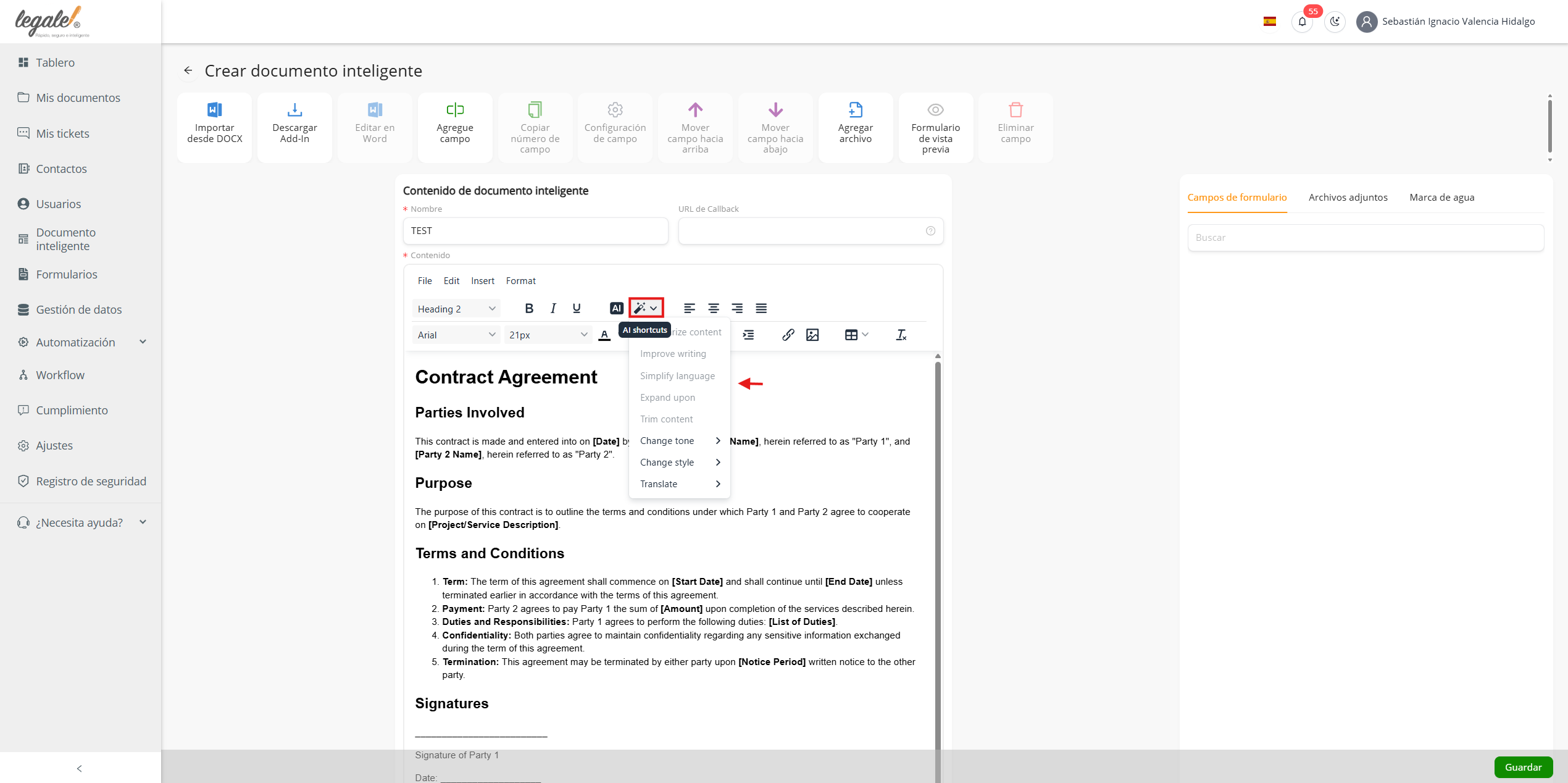
Additionally, the AI Shortcuts feature allows users to refine existing text by improving writing, simplifying language, expanding or shortening content, changing tone or style, and translating text.
These tools help streamline document creation and make it easier to build document templates more efficiently.
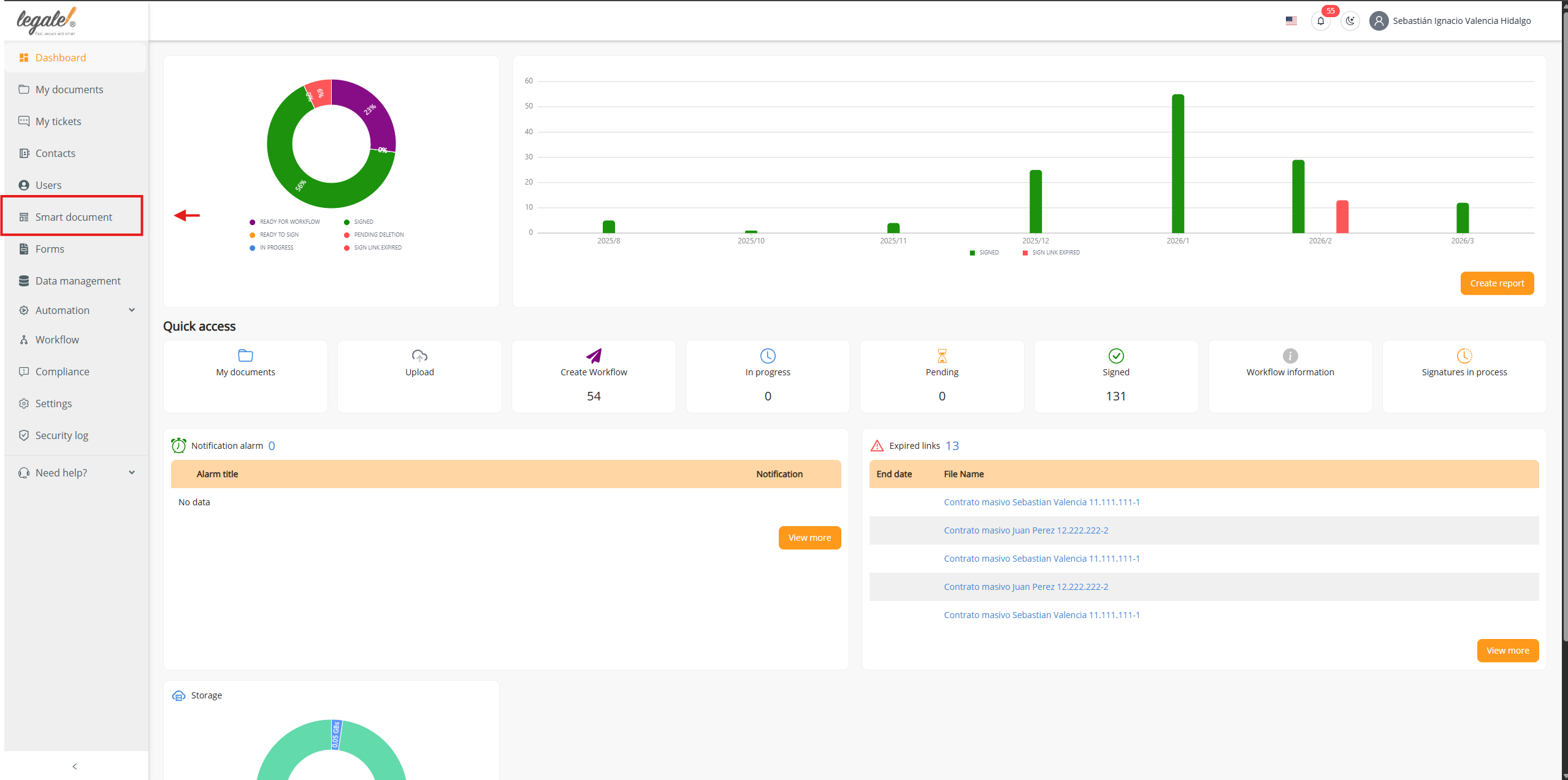
1. Go to Smart Documents
To begin, navigate to the Smart document section from the left-hand menu in the platform dashboard. This section allows you to manage and create intelligent document templates.
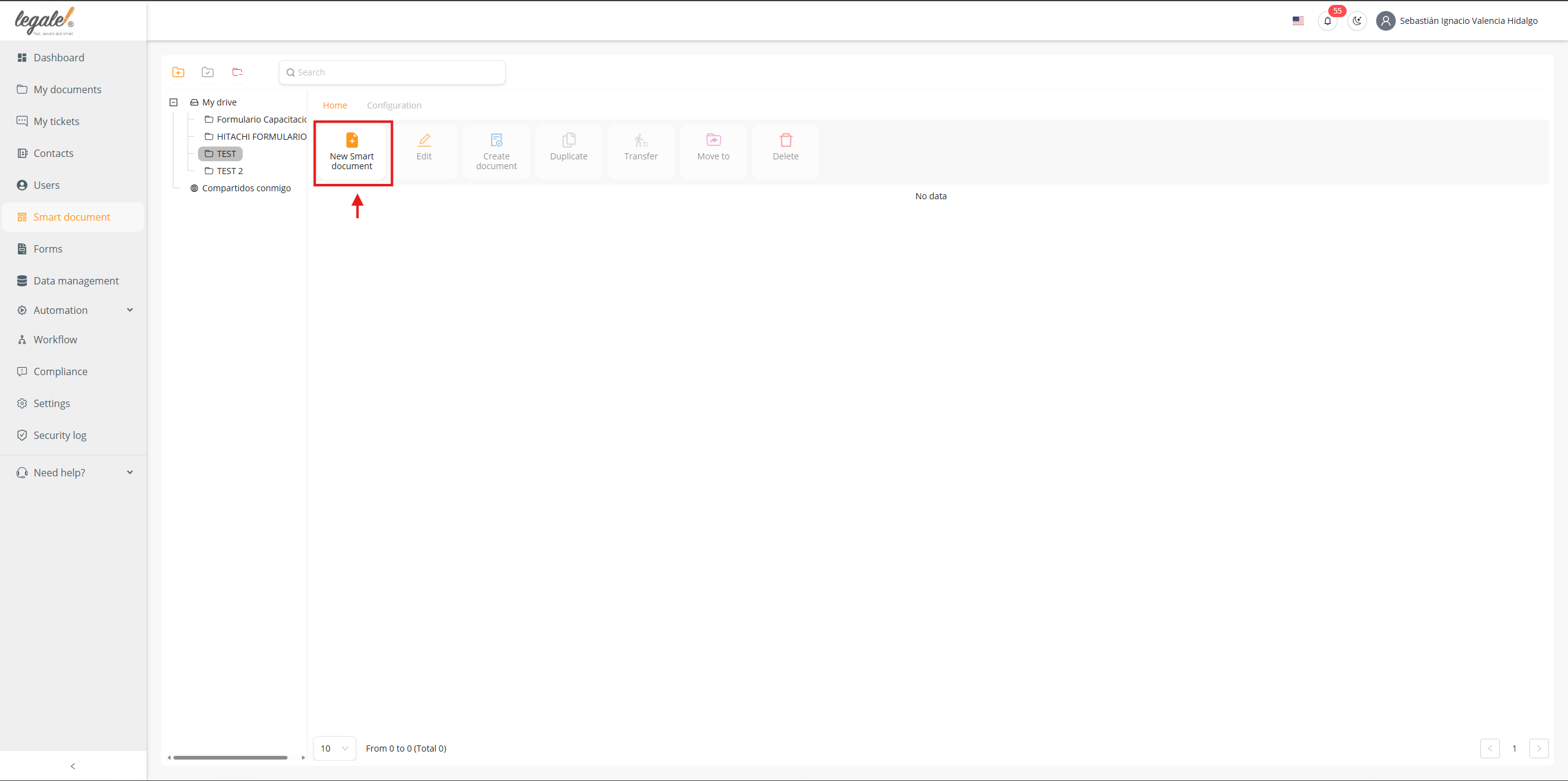
2. Create a new Smart Document
Once inside the Smart document section, click the New Smart document button located at the top of the page. This will open the interface where you can start creating a new Smart Document template.
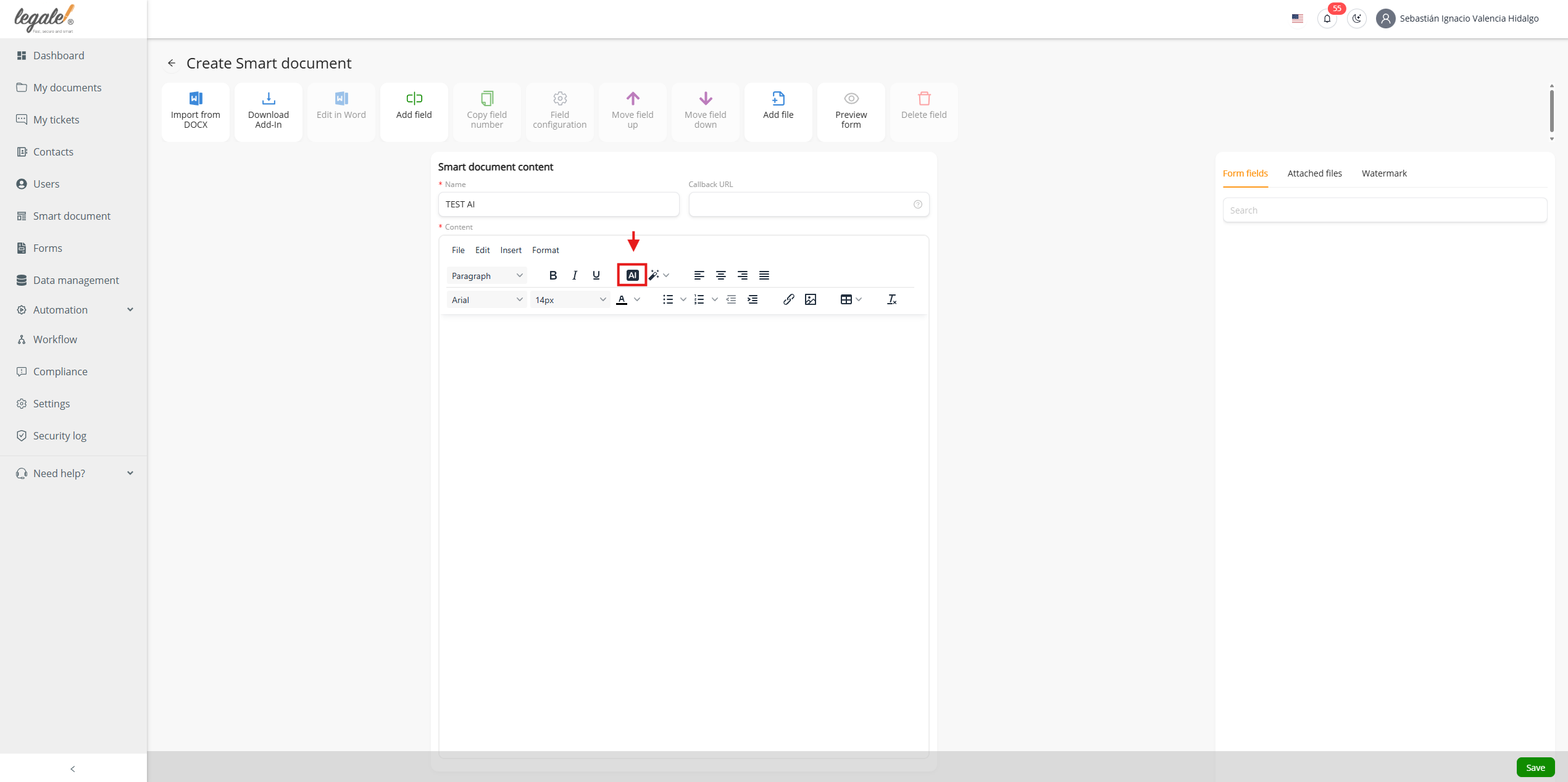
3. Open the Smart Document editor
After clicking New Smart document, the Smart Document editor will open. This is where you can write or configure the content of your document.
In the editor toolbar, locate and select the AI icon to access the AI Assistant.
4. Use the AI Assistant
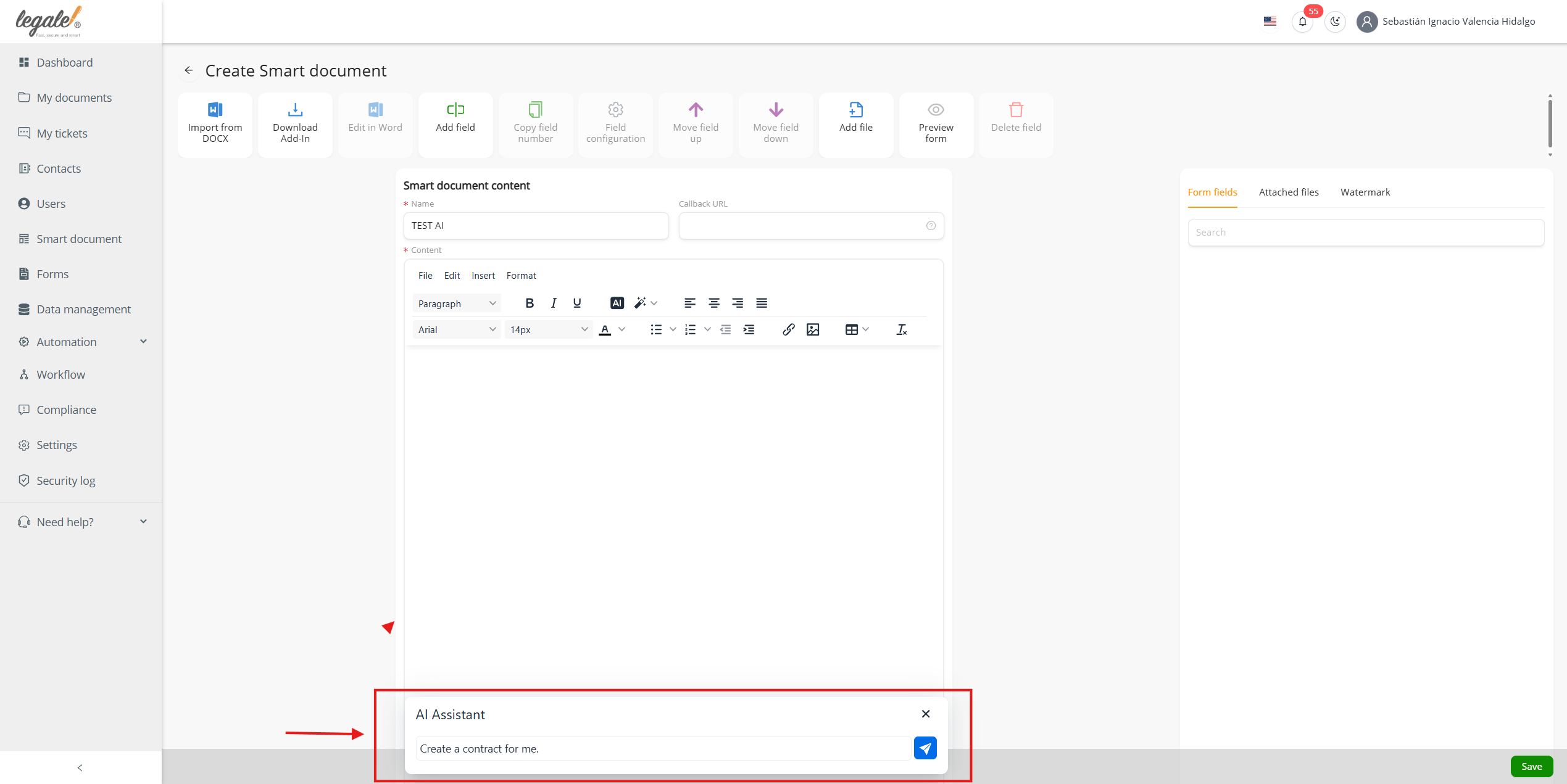
Once the AI icon is selected, a panel will appear at the bottom of the screen showing the AI Assistant.
Here you can type instructions or prompts for the AI.
For example:
Create a contract for me
The AI will generate content based on the request you provide.
5. Insert generated content
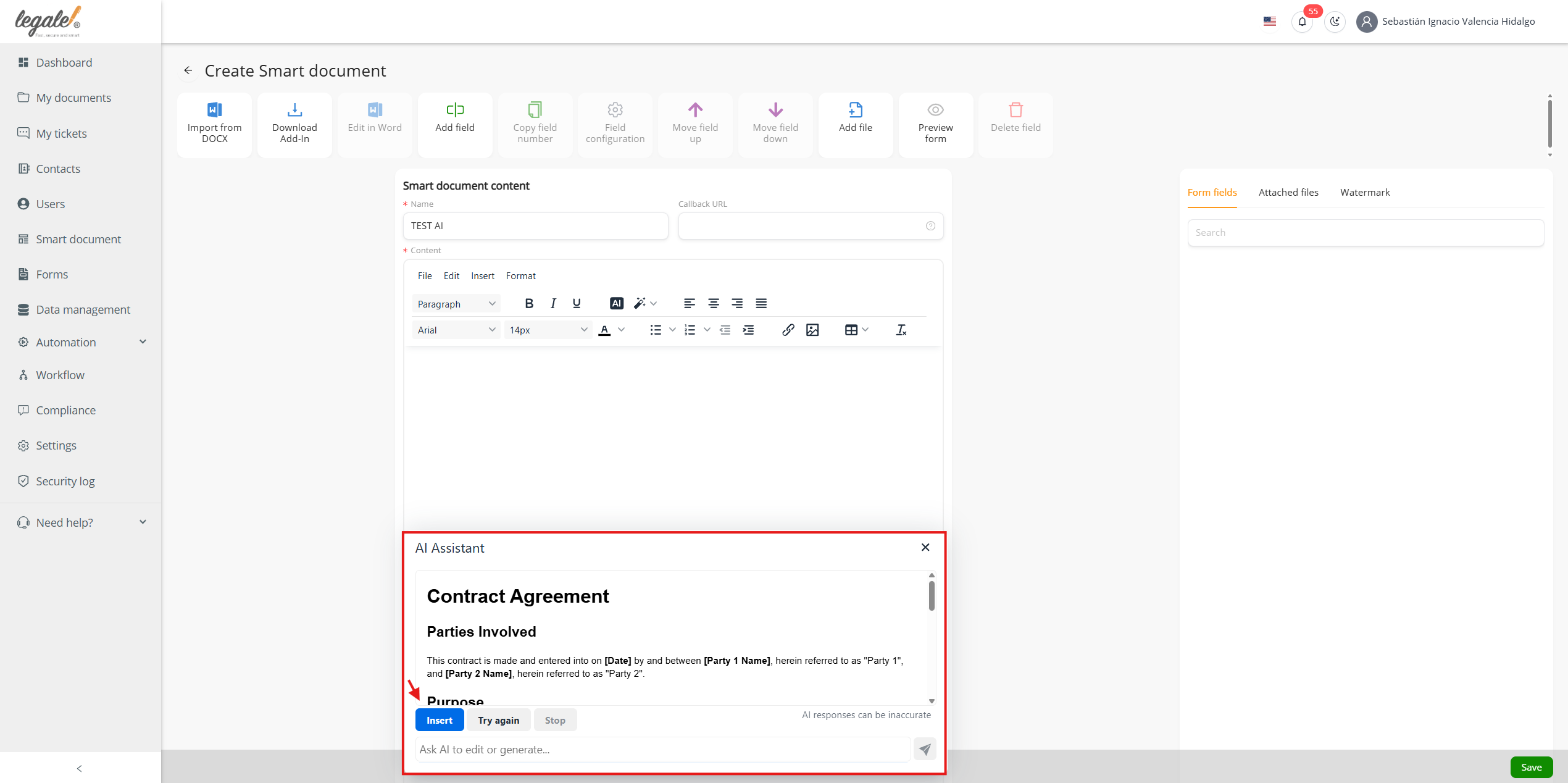
After the AI generates the content, review the result in the AI Assistant panel.
If the generated text is correct, click the Insert button to add the content directly into the Smart Document template.
6. Edit the inserted content
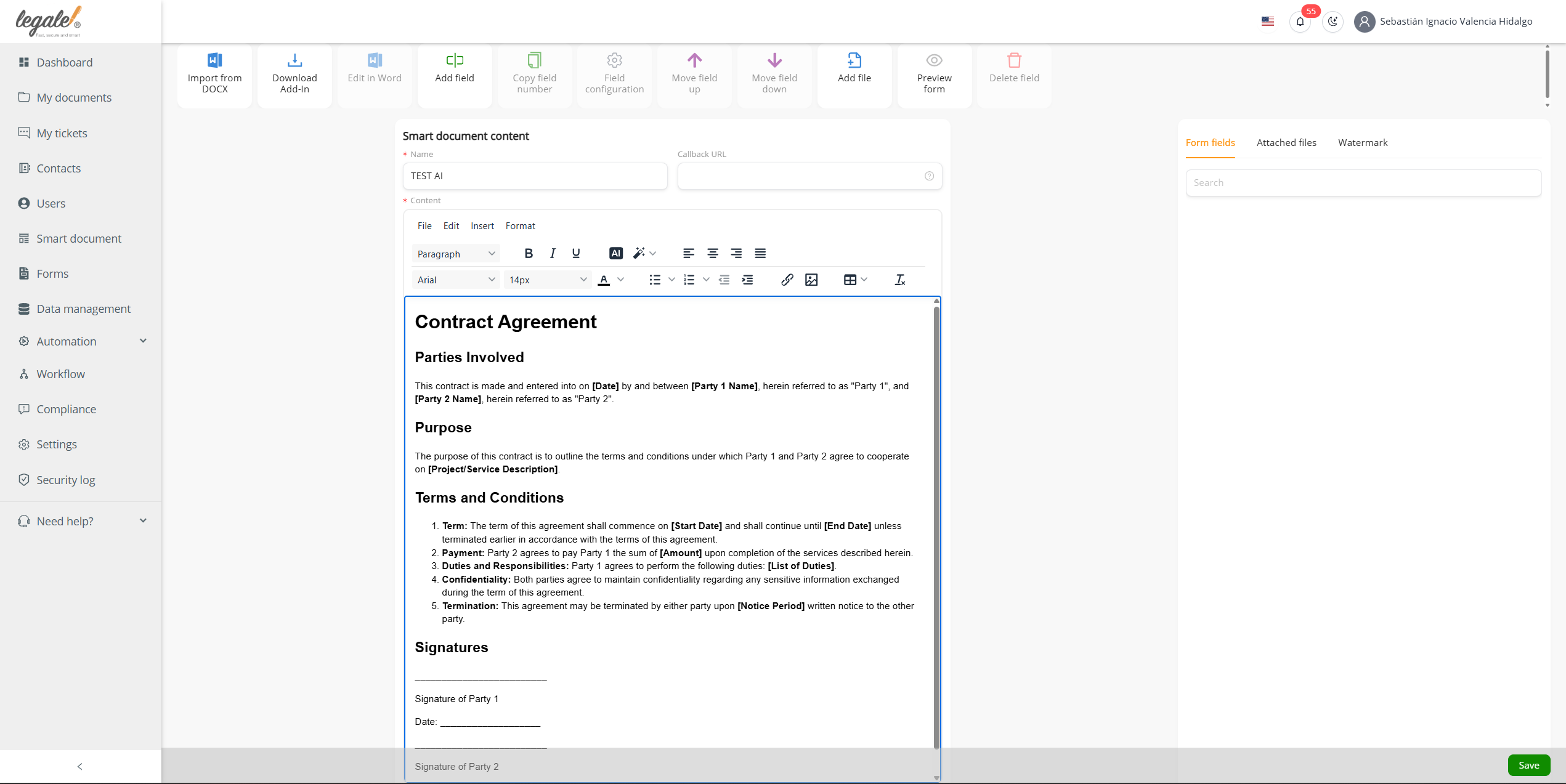
Once the content is inserted, it will appear inside the Smart Document editor.
From here, you can freely modify the text, format it, or add variables and form fields as needed to adapt the document to your workflow.
7. Use AI Shortcuts
Next to the AI icon, you will also find the AI Shortcuts option (pencil icon).
This feature provides additional AI tools that allow you to quickly modify text, including:
-
Improve writing
-
Simplify language
-
Expand content
-
Trim content
-
Change tone
-
Change style
-
Translate text
These shortcuts help you quickly adjust and refine the document content directly within the editor.