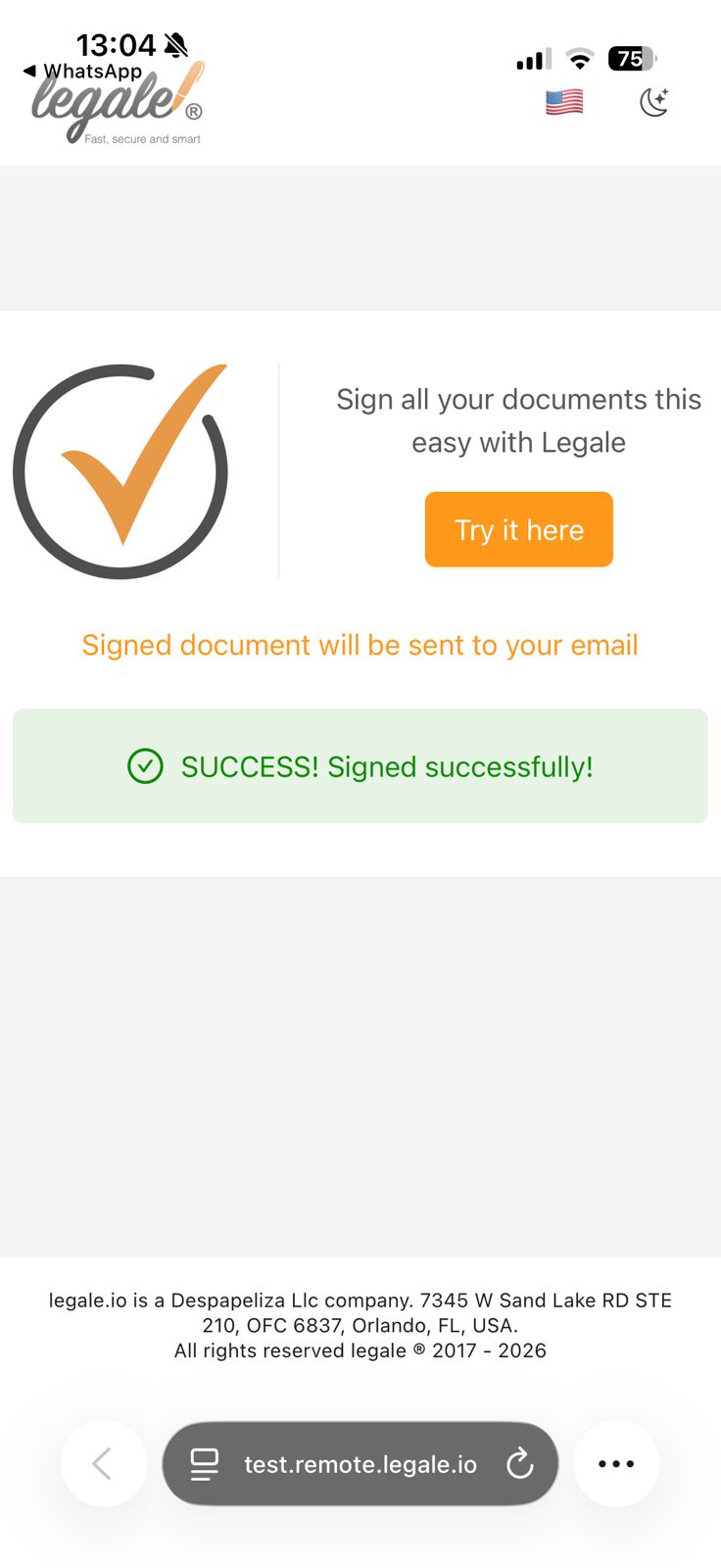
- Send a Document for Signature via WhatsApp
- 1. Upload a Document
- 2. Prepare the Document for Workflow
- 3. Open the Document and Add a Signer
- 4. Choose the Signing Flow
- 5. Select the WhatsApp Signing Method
- 6. Choose or Add a Contact
- 7. Complete the Contact Information
- 8. Send the Document
- 9. Document Status in Progress
- 10. Signer Receives WhatsApp Message
- 11. Open the Document from the Phone
- 12. Sign the Document
- 13. Document Successfully Signed
Send a Document for Signature via WhatsApp #
The WhatsApp signature feature allows users to send documents for signature directly through WhatsApp.
This method enables signers to receive a secure link on their phone, review the document, and sign it from any device without needing to log into the platform.
This functionality improves response time and makes the signing process faster and more accessible for external signers.
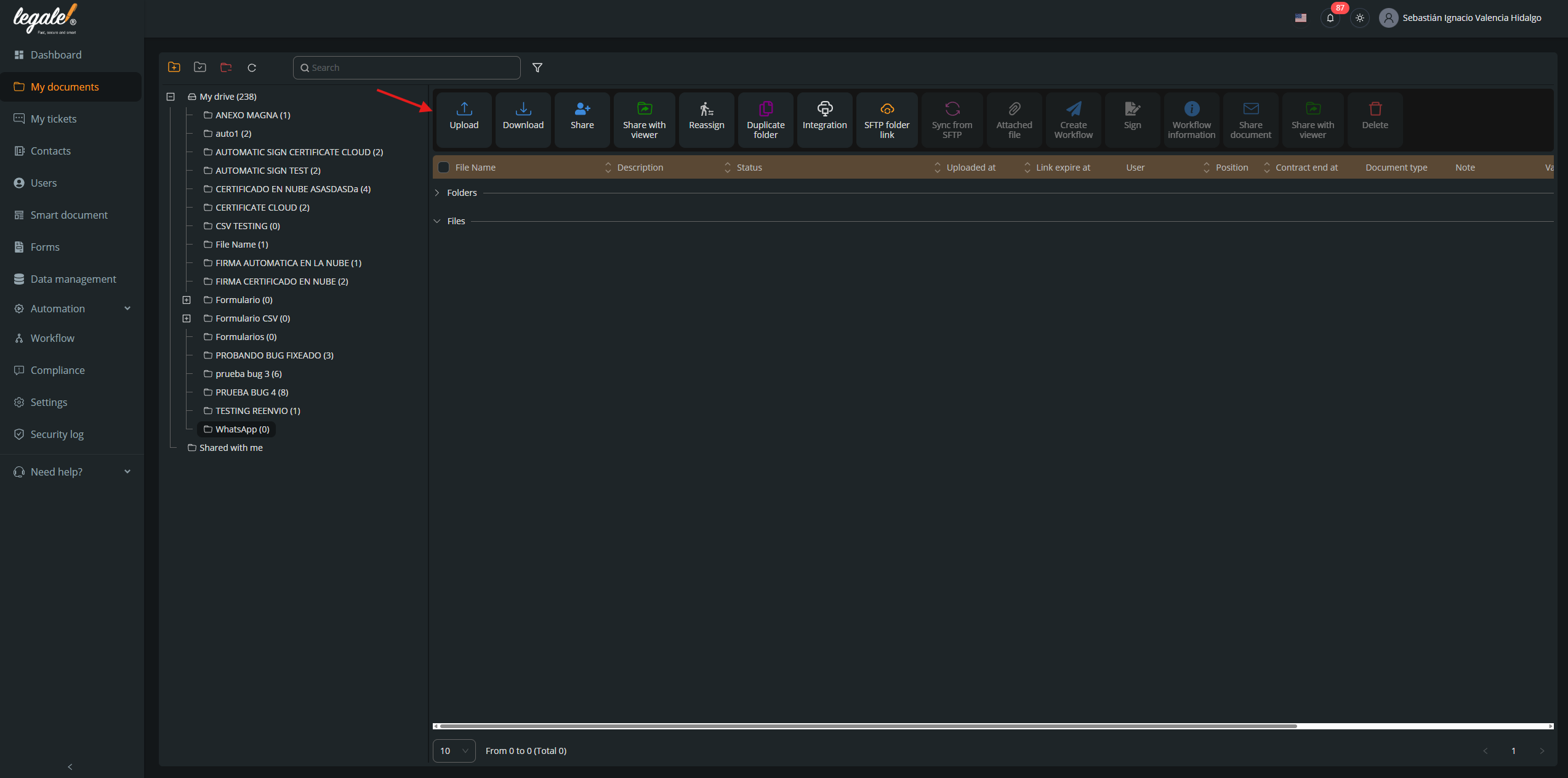
1. Upload a Document #
From My Documents, click the Upload button and select the file you want to send for signature.
2. Prepare the Document for Workflow #
Once the document is uploaded, it will appear in the list with the status Ready for Workflow.
This indicates that the document is ready to be sent for signature.

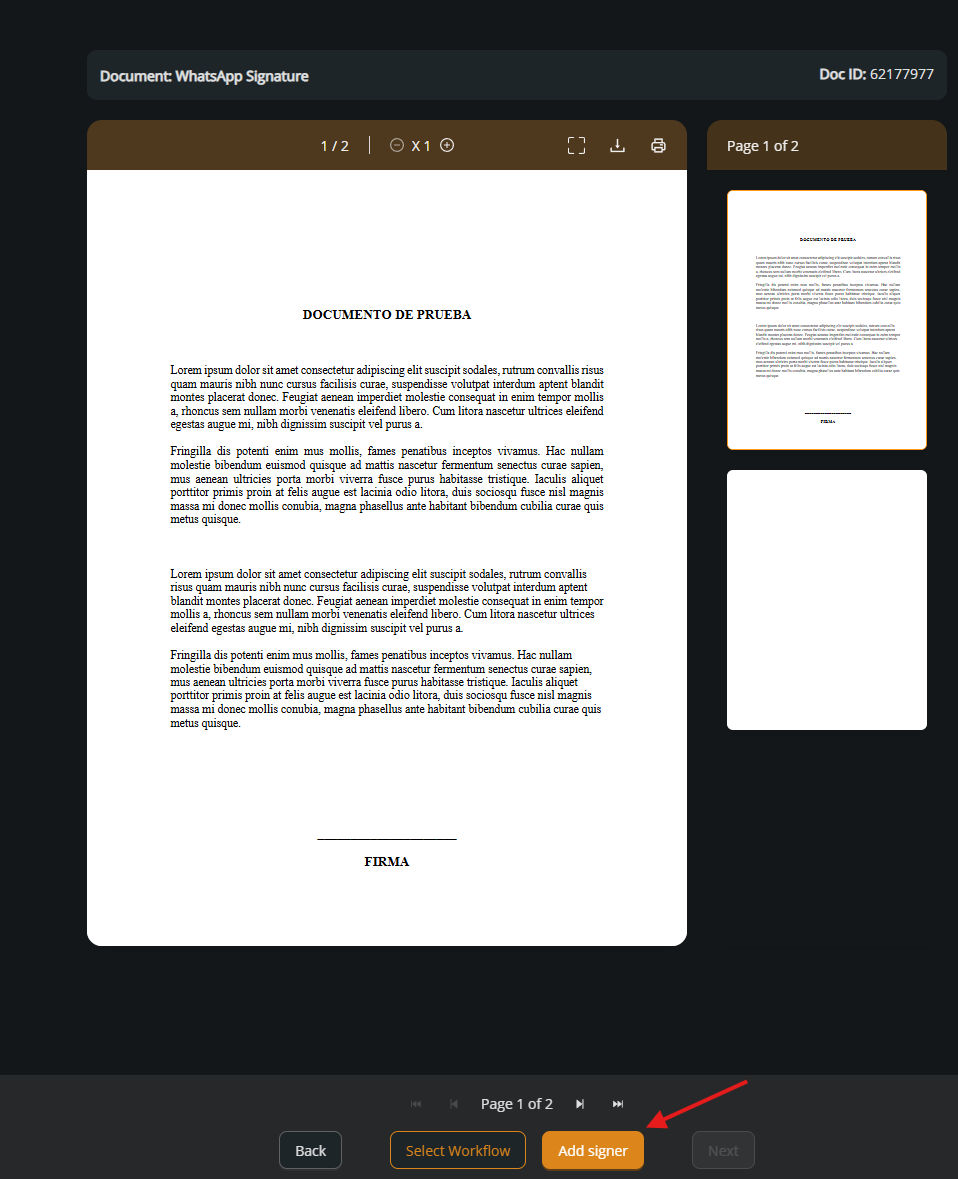
3. Open the Document and Add a Signer #
Open the uploaded document and click Add signer to start the signing configuration.
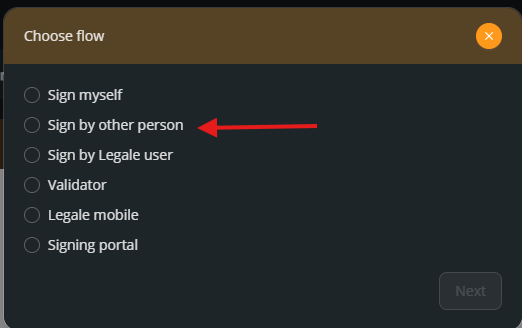
4. Choose the Signing Flow #
A window will appear asking how the document will be signed.
Select Sign by other person to send the document to an external signer.
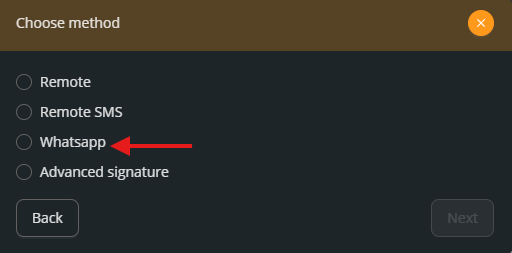
5. Select the WhatsApp Signing Method #
Next, choose the signature delivery method.
Select WhatsApp from the available options.
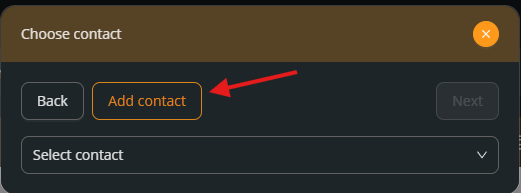
6. Choose or Add a Contact #
You can select an existing contact or create a new one.
Important:
The contact must include a phone number, otherwise the WhatsApp delivery will not work.
Click Add contact if the signer is not registered yet.
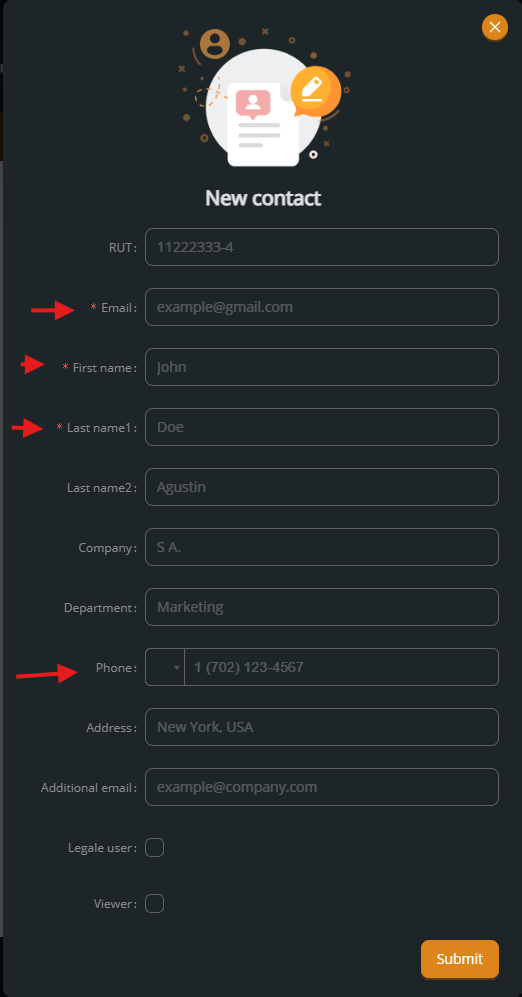
7. Complete the Contact Information #
Fill in the required information for the signer:
-
Email
-
First name
-
Last name
-
Phone number (required for WhatsApp delivery)
Then click Submit.
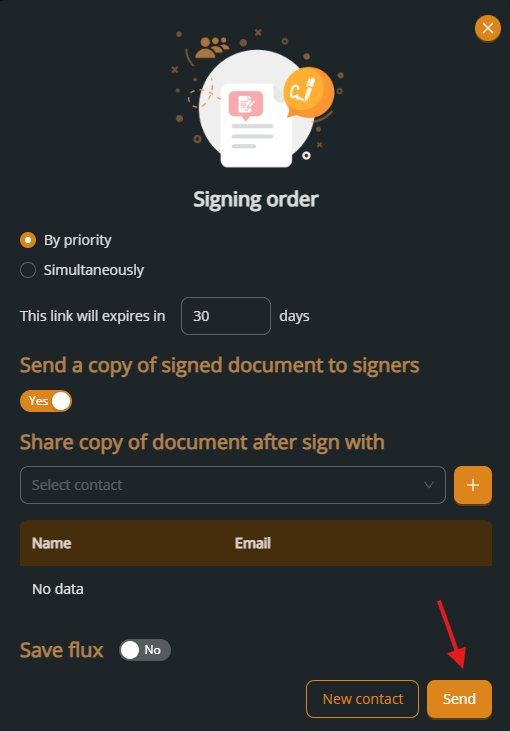
8. Send the Document #
After configuring the signing order and options, click Send to deliver the document to the signer.
9. Document Status in Progress #
Once sent, the document status will change to In progress, indicating that the signature request has been delivered.

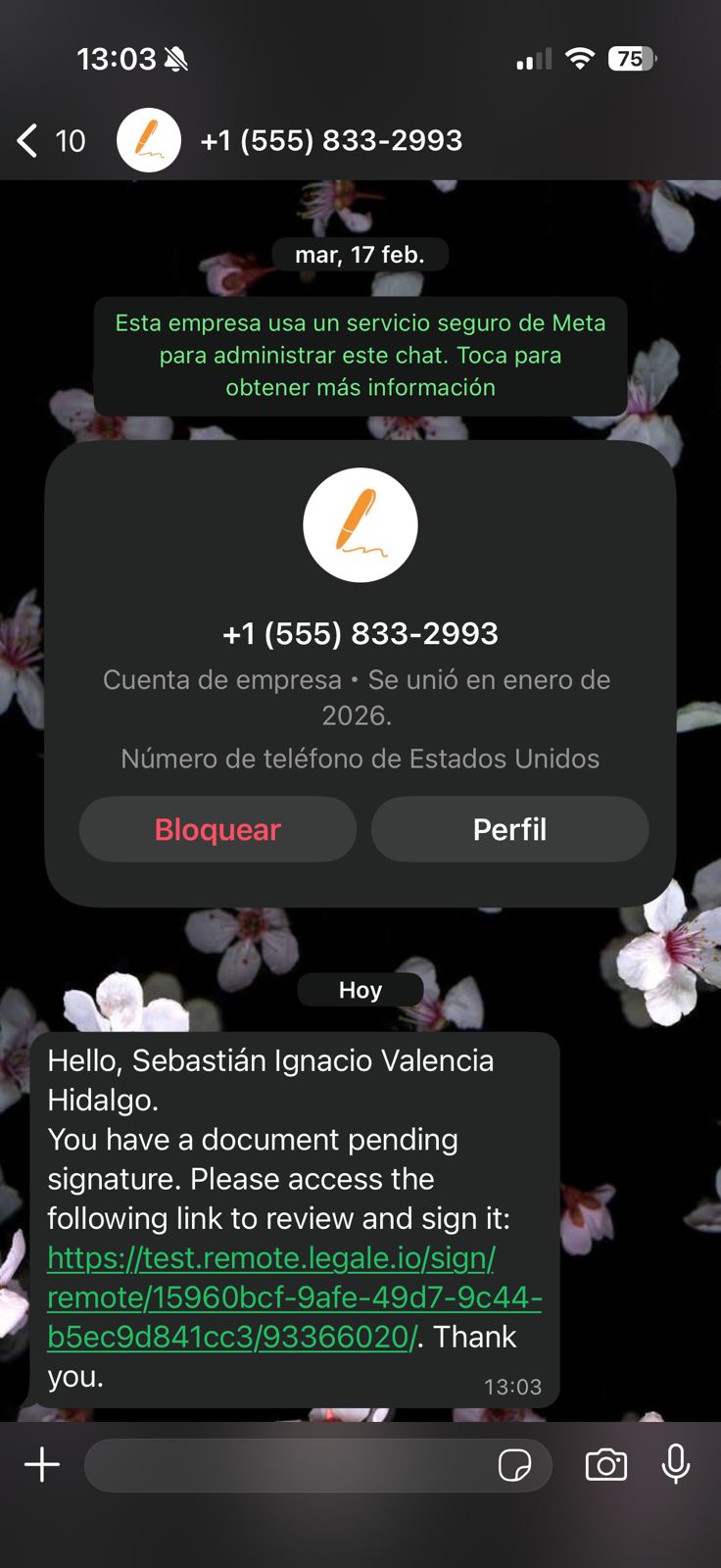
10. Signer Receives WhatsApp Message #
The signer will receive a WhatsApp message containing:
-
A notification text
-
A secure signing link
This link allows the signer to open and review the document from their phone.
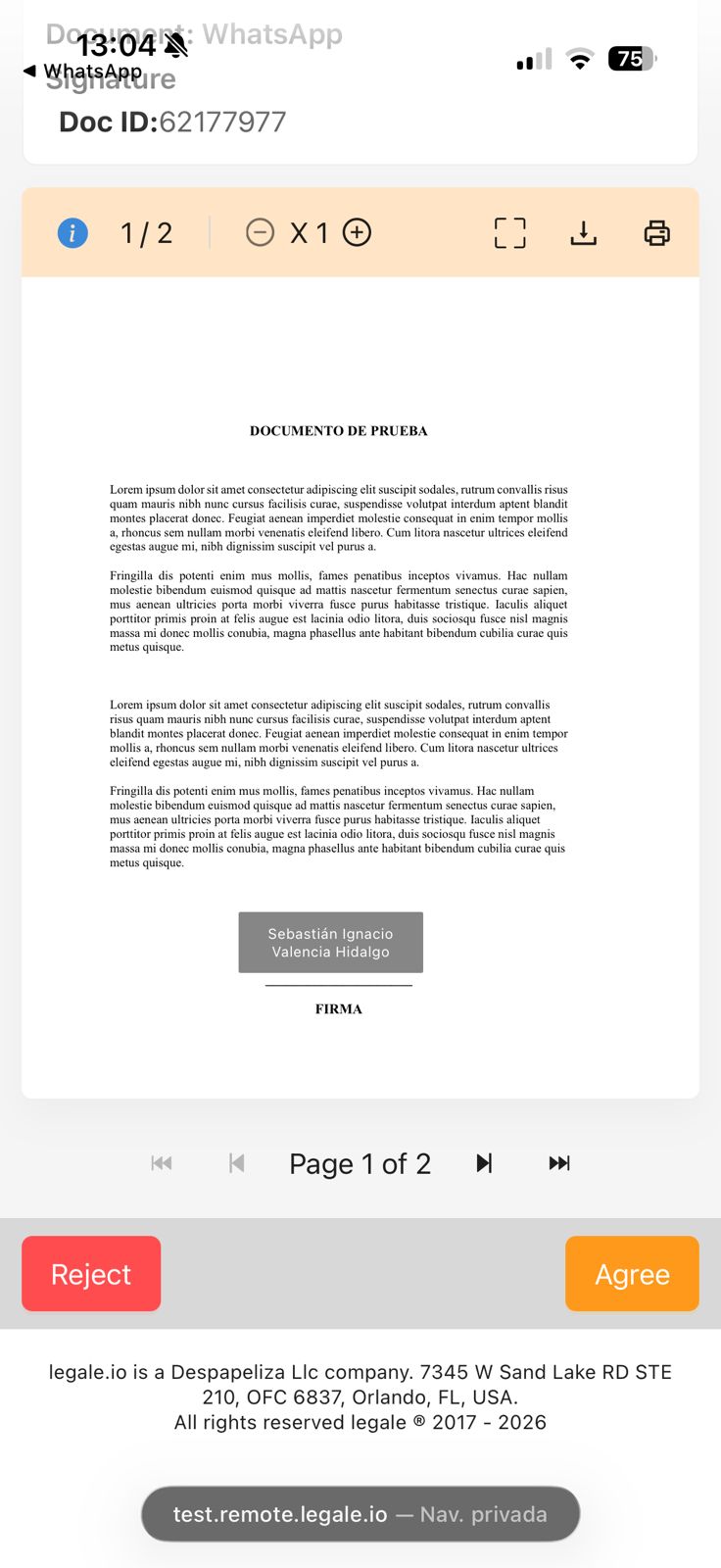
11. Open the Document from the Phone #
After clicking the link, the signer can access the document directly from their mobile device and review its contents.
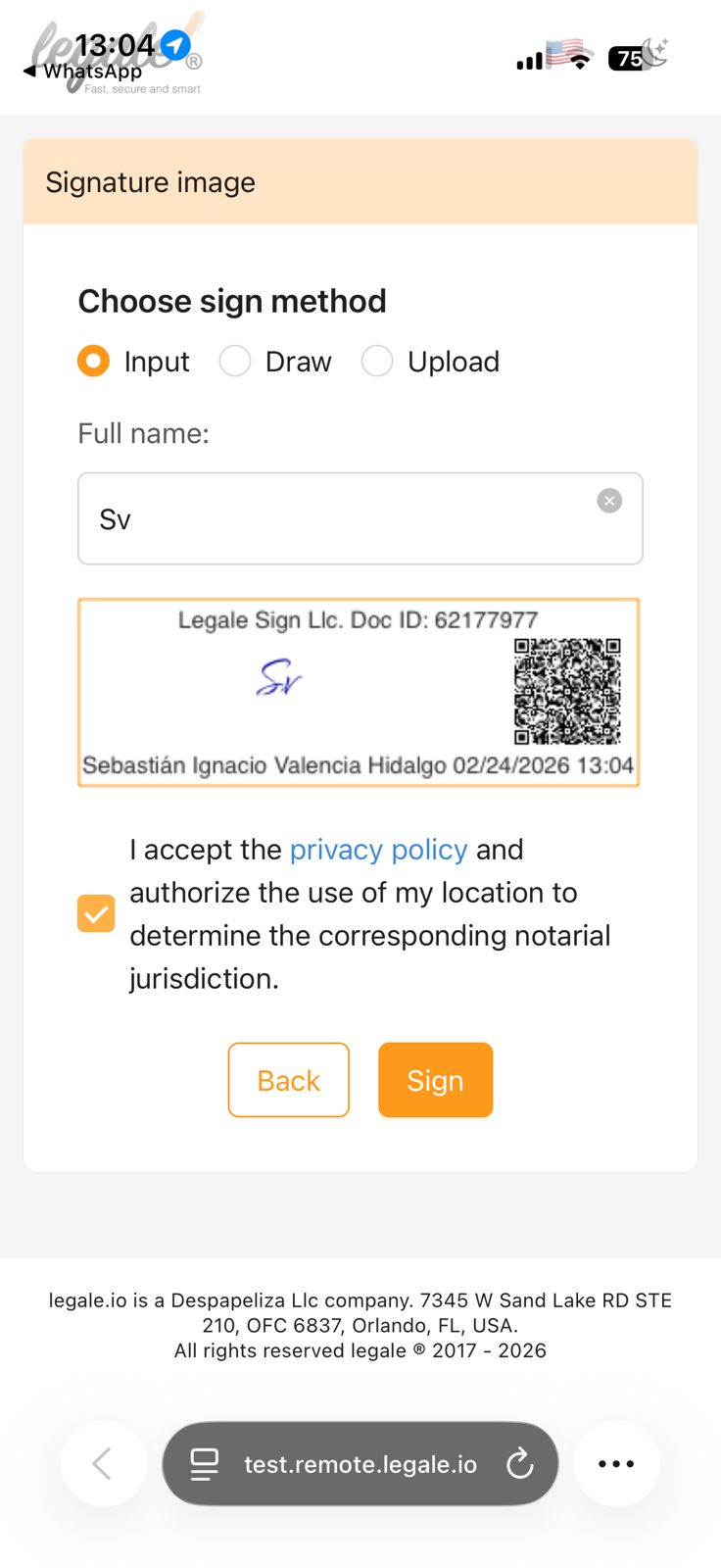
12. Sign the Document #
The signer can approve and sign the document directly from the mobile interface by confirming the signature action.
13. Document Successfully Signed #
Once the signing process is completed, the document will appear as signed in the platform and the workflow will be finished.