My Tickets #
What is My Tickets? #
The My Tickets module allows users to create and manage internal tickets within the platform.
A ticket represents a structured internal conversation used to manage requests, follow-ups, coordination tasks, or internal issues between users of the same organization.
This module helps organizations keep internal communications organized, traceable, and separated from external support requests.
Difference between My Tickets and Support #
It is important to clearly distinguish between these two modules:
-
My Tickets
Internal conversations between users of the same organization (requests, clarifications, follow-ups, and coordination). -
Support
Requests sent to the Legale.io Support Team for technical issues or platform-related questions.
This separation ensures that internal communication is not mixed with external support.
Cost Information #
-
Individual users
My Tickets has an additional cost associated with the subscription plan. -
Companies
My Tickets is offered as a separate paid service, independent from the main subscription plan.
Requesting activation of My Tickets #
The My Tickets module is not enabled by default.
To use this feature, users must request the administrator to activate it. Once enabled, the module becomes available in the dashboard.
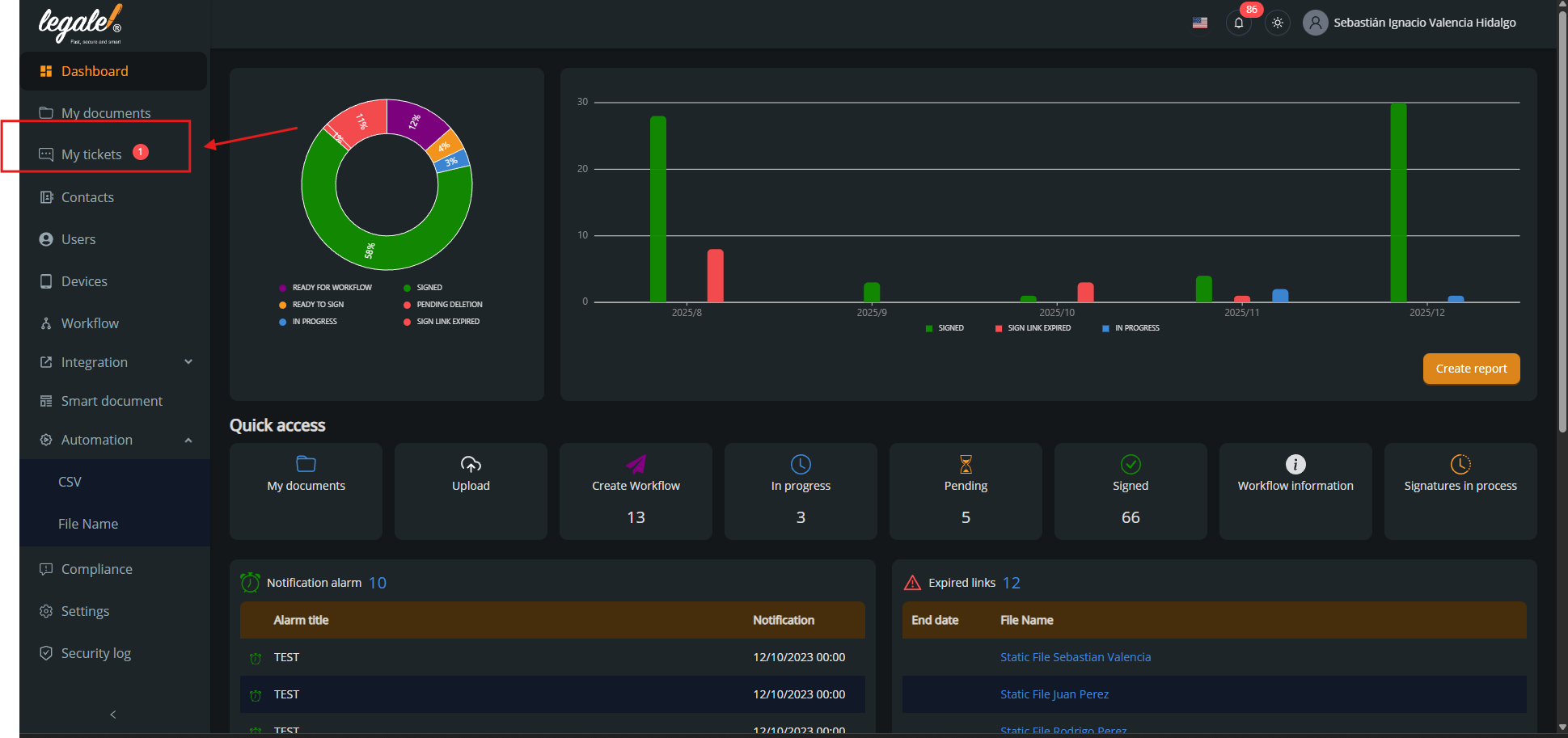
Accessing the My Tickets panel #
Once activated, the My Tickets option appears in the dashboard menu.
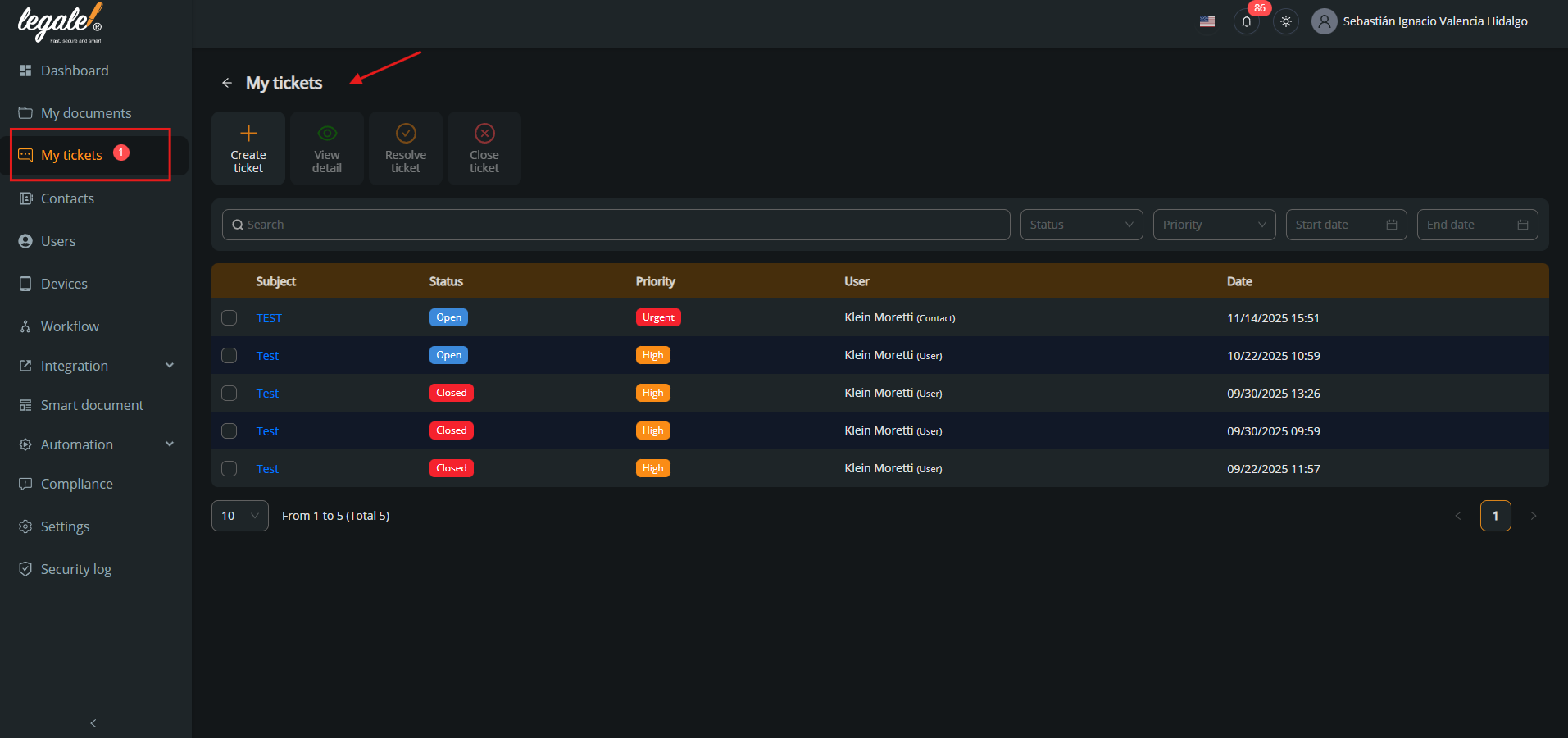
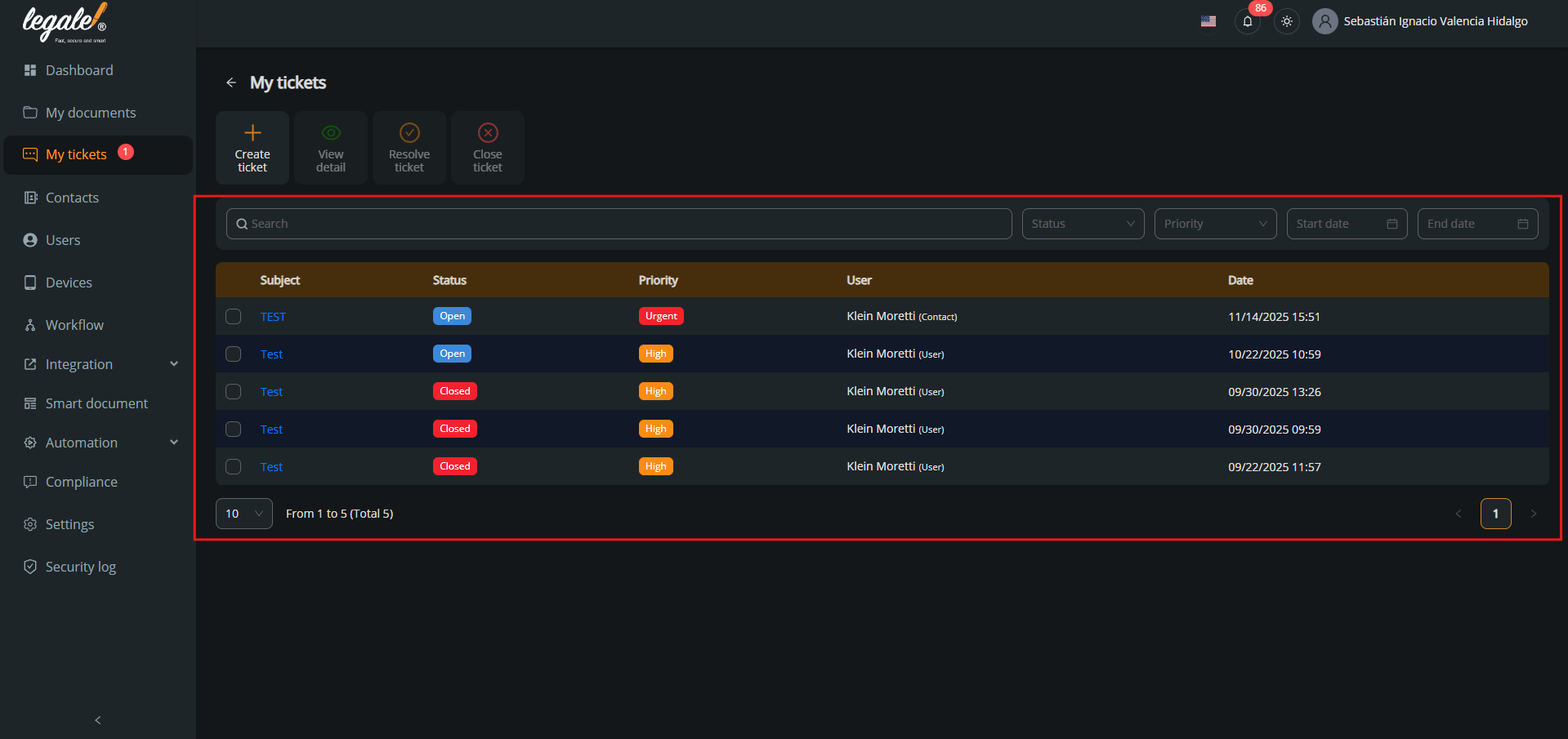
From this panel, users can view, filter, and manage all internal tickets.
Creating a ticket and viewing the ticket list #
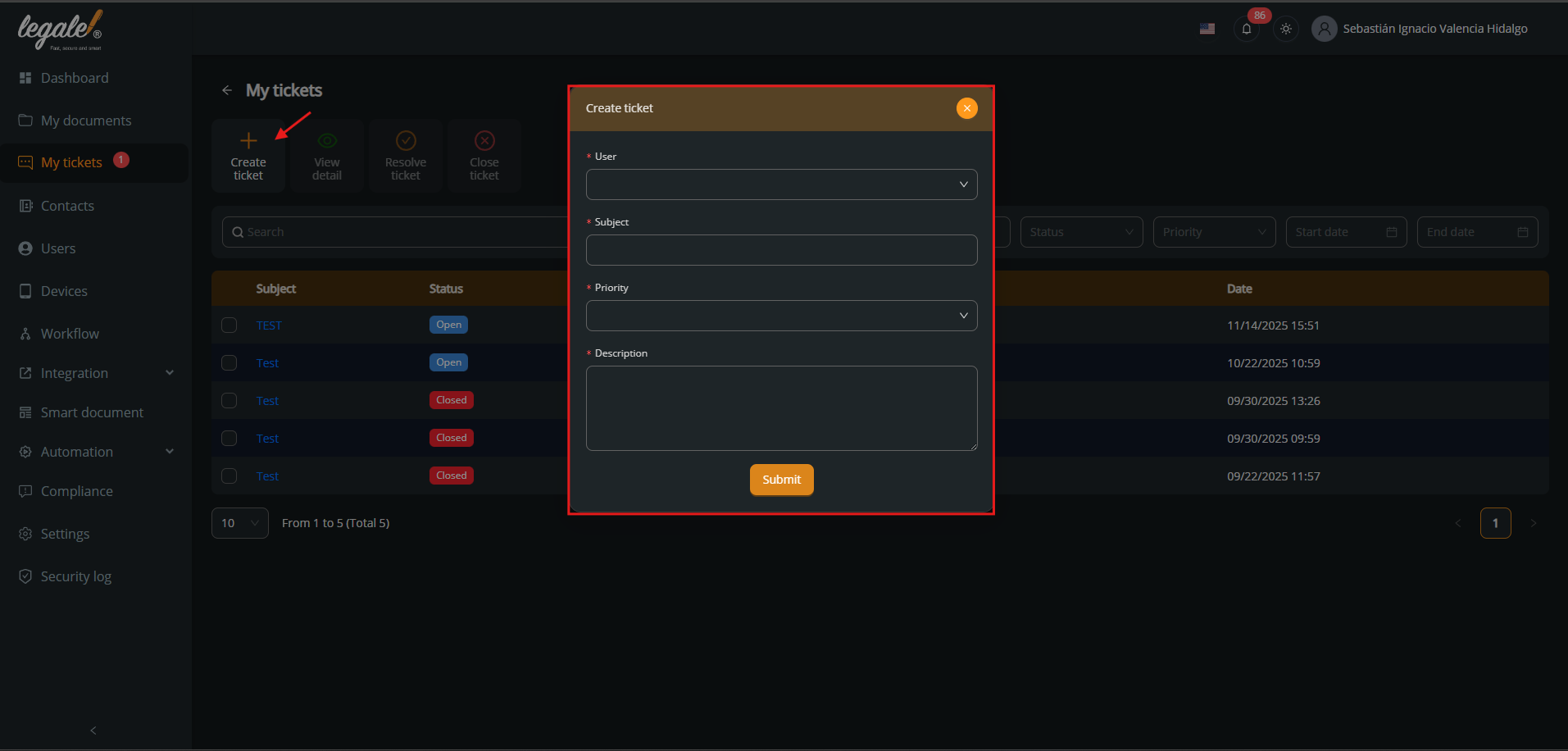
Inside the module, users can create a new ticket by clicking the Create ticket button.
When creating a ticket, the following fields are required:
-
User
-
Subject
-
Priority (Low, Medium, High, Urgent)
-
Description
Once created, the ticket appears immediately in the ticket list.
Opening a ticket from the panel #
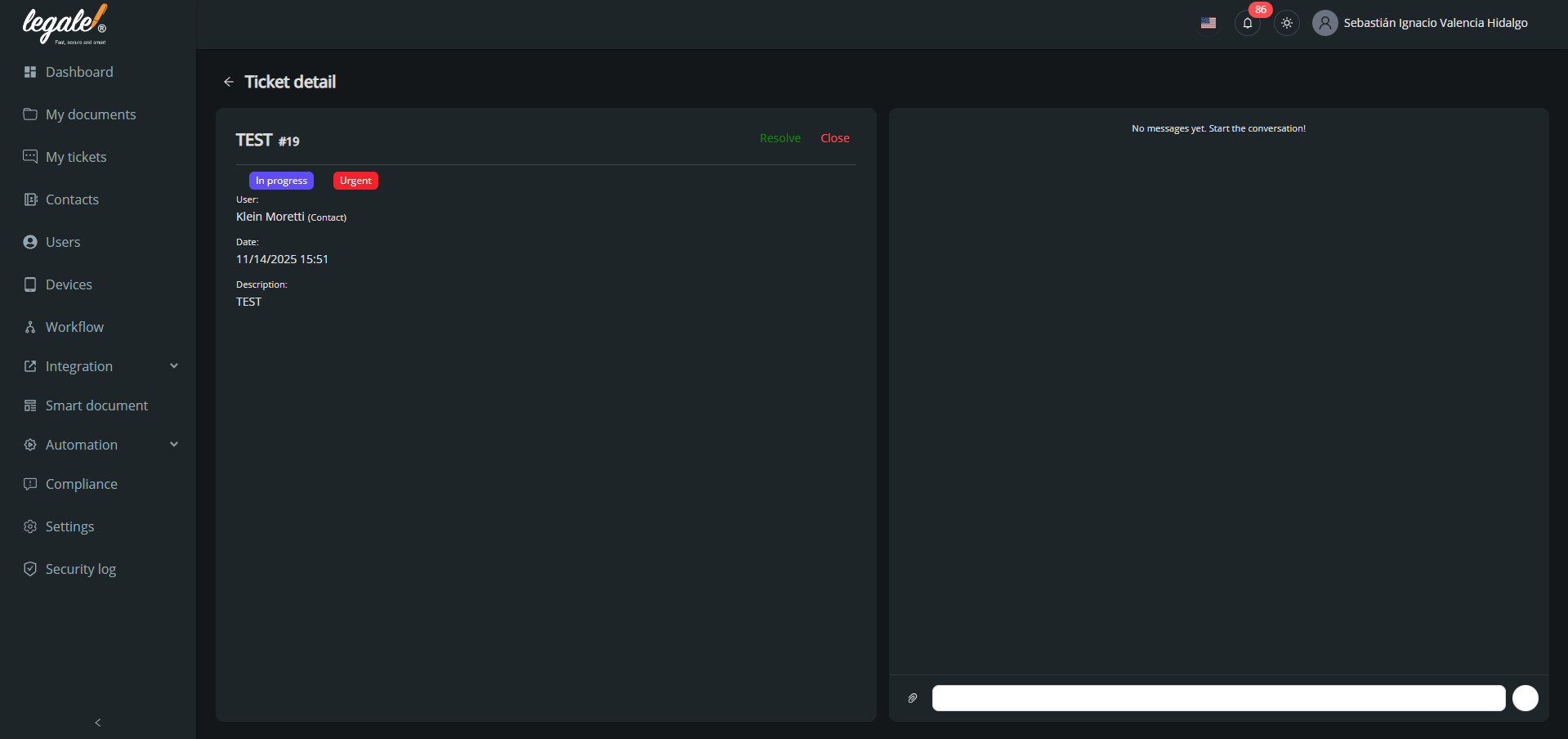
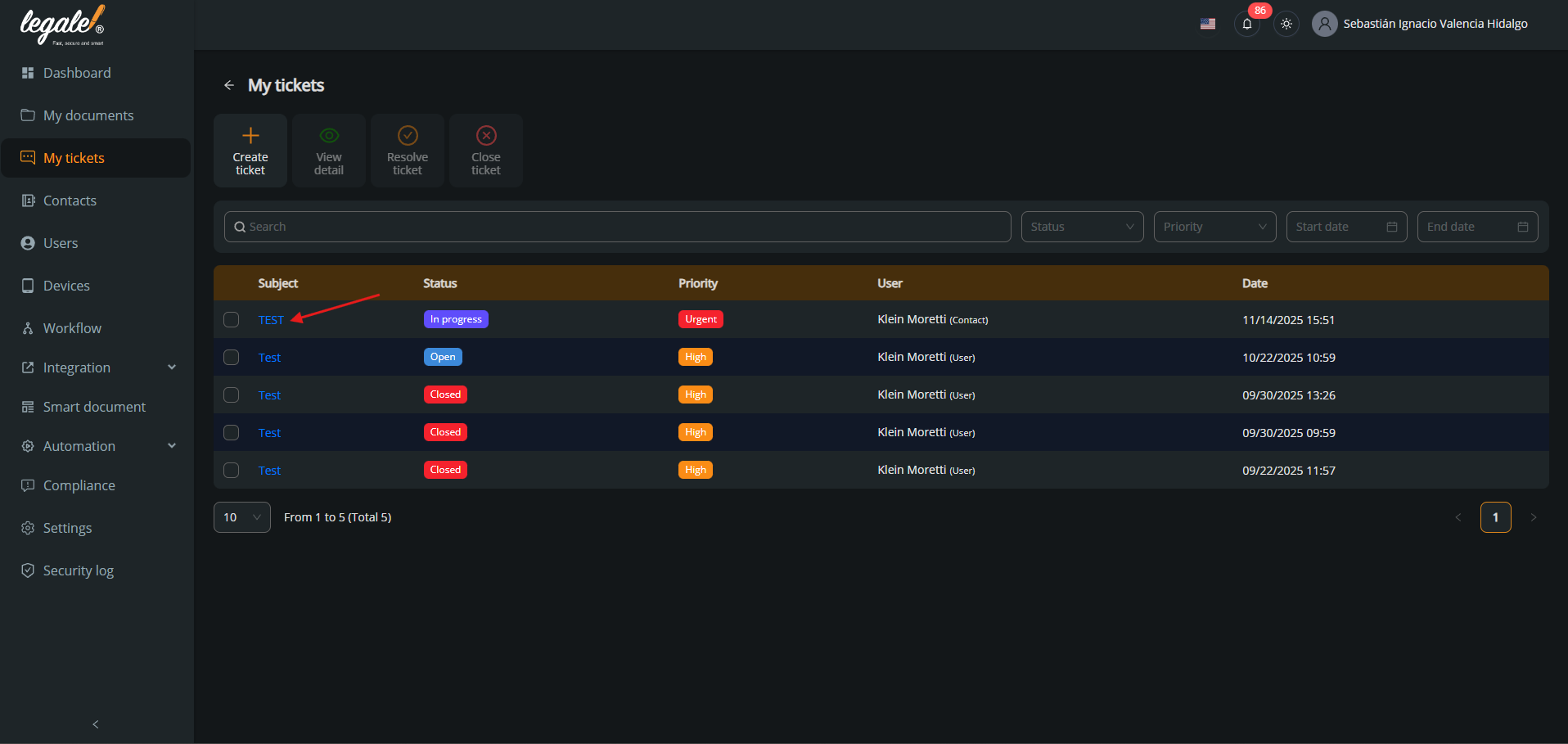
Users can open a ticket by selecting it from the list and clicking View detail.
This action opens the ticket detail view, where all ticket information is displayed.
Ticket actions (Resolve and Close) #
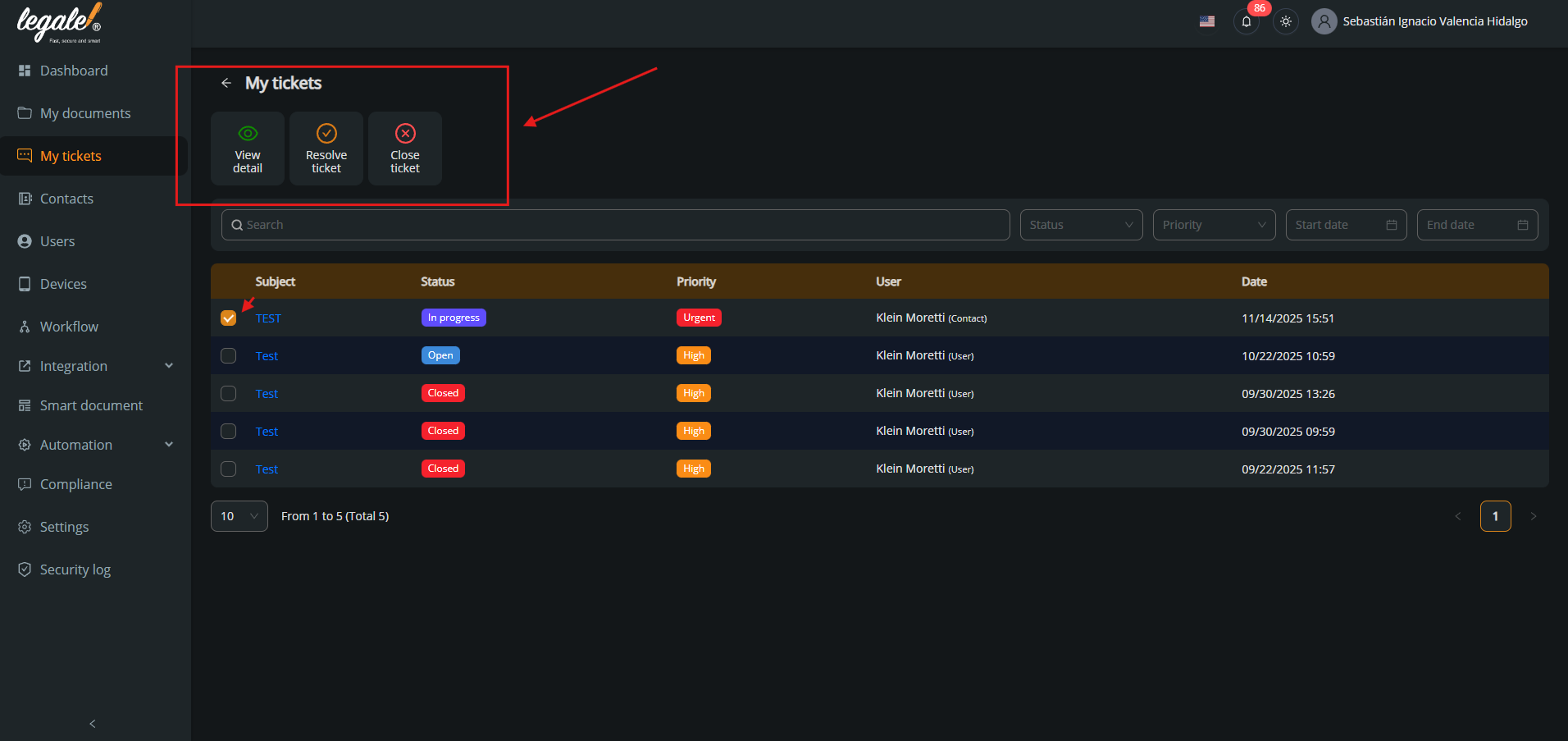
From the ticket list or the ticket detail view, users can perform the following actions:
-
Resolve ticket: Marks the ticket as resolved.
-
Close ticket: Closes the ticket permanently.
These actions update the ticket status and are immediately reflected in the ticket list.
Chat view inside a ticket #
Inside the ticket detail view, users can access the conversation (chat) section, where:
-
All messages related to the ticket are displayed.
-
Users can reply directly.
-
The full conversation history is preserved.
This allows continuous communication and proper follow-up until the ticket is resolved or closed.